Top 5 Morpholio Trace Alternatives for Architects in 2026

Jan 9, 2026
For many architects, Morpholio Trace is the default digital sketching tool. It successfully bridged the gap between the yellow tracing paper of the past and the iPad era, offering scale tools and layering that felt natural to the profession.
However, it is not the only option, and for certain workflows, it is no longer the best one. Some professionals find the subscription model fatigue-inducing, others need vector-based precision that raster apps cannot provide, and many are looking for ways to bypass the manual rendering process entirely.
This guide covers the top alternatives to Morpholio Trace, categorized by how they fit into a real architectural workflow, from technical redlining to rapid visualization.
Quick Comparison
Feature | Morpholio Trace | Rendair AI | Concepts | Procreate | Bluebeam Revu |
|---|---|---|---|---|---|
Primary Function | Digital Drafting & Overlay | AI Visualization & Rendering | Vector Sketching | Artistic Illustration | PDF Redlining & Markup |
Best For | Scaled sketches over maps/plans | Instant client visuals from sketches | Infinite canvas brainstorming | Mood boards & artistic renders | Construction administration (CA) |
Output Type | Raster (Pixel-based) | High-Res Renderings | Vector (Editable paths) | Raster (Pixel-based) | Vector PDF |
Platform | iOS (iPad/iPhone) | Web-based (All devices) | iOS, Windows, Android | iOS (iPad) | Windows, iPad |
Learning Curve | Medium | Low | Medium | High (to master) | High |
What is Morpholio Trace?
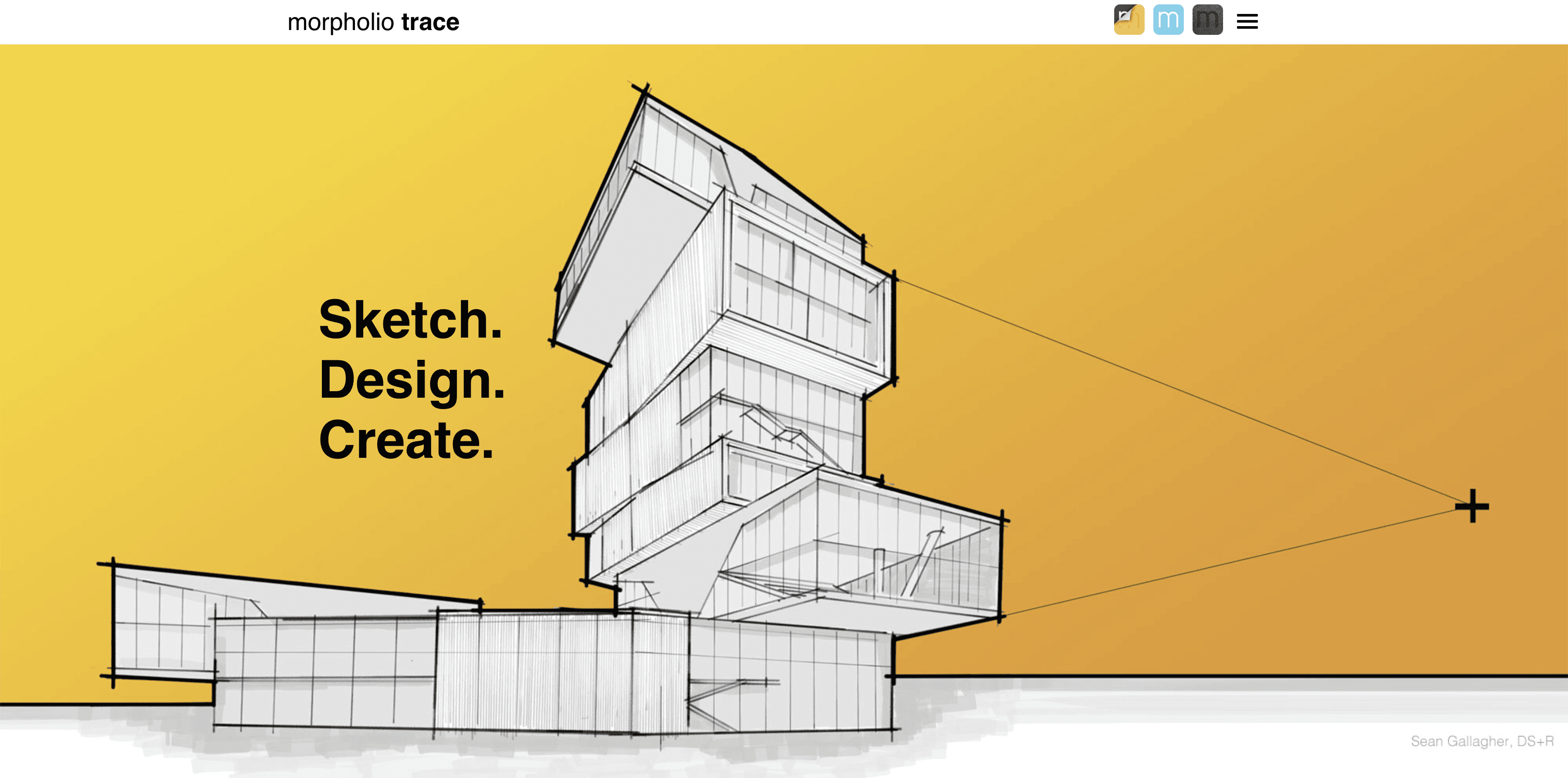
Morpholio Trace is a sketching app designed specifically for architects. Unlike general art apps, it includes tools like scale rulers, protractors, and stencil libraries that mimic traditional drafting equipment. Its core value is "digital tracing paper", allowing users to import a floor plan or 3D model and sketch over it in layers. It is widely used for schematic design and quick field markups.
How to choose a Morpholio Trace alternative
When replacing Trace, you are usually trying to solve one of three specific friction points. Identify which one matters most to your current projects:
The "Editing" Problem: If you draw a wall in Trace, it is just pixels. You cannot grab it and stretch it later. If you need editable lines, you need a vector-based tool.
The "Rendering" Problem: If you are using Trace to color in floor plans or elevations for clients, you are spending hours on manual work that AI tools can now do in seconds.
The "Platform" Problem: Trace is heavily Apple-centric. If your firm uses Surface tablets or Windows workstations, you need cross-platform software.
Top Morpholio Trace Alternatives
1/ Concepts
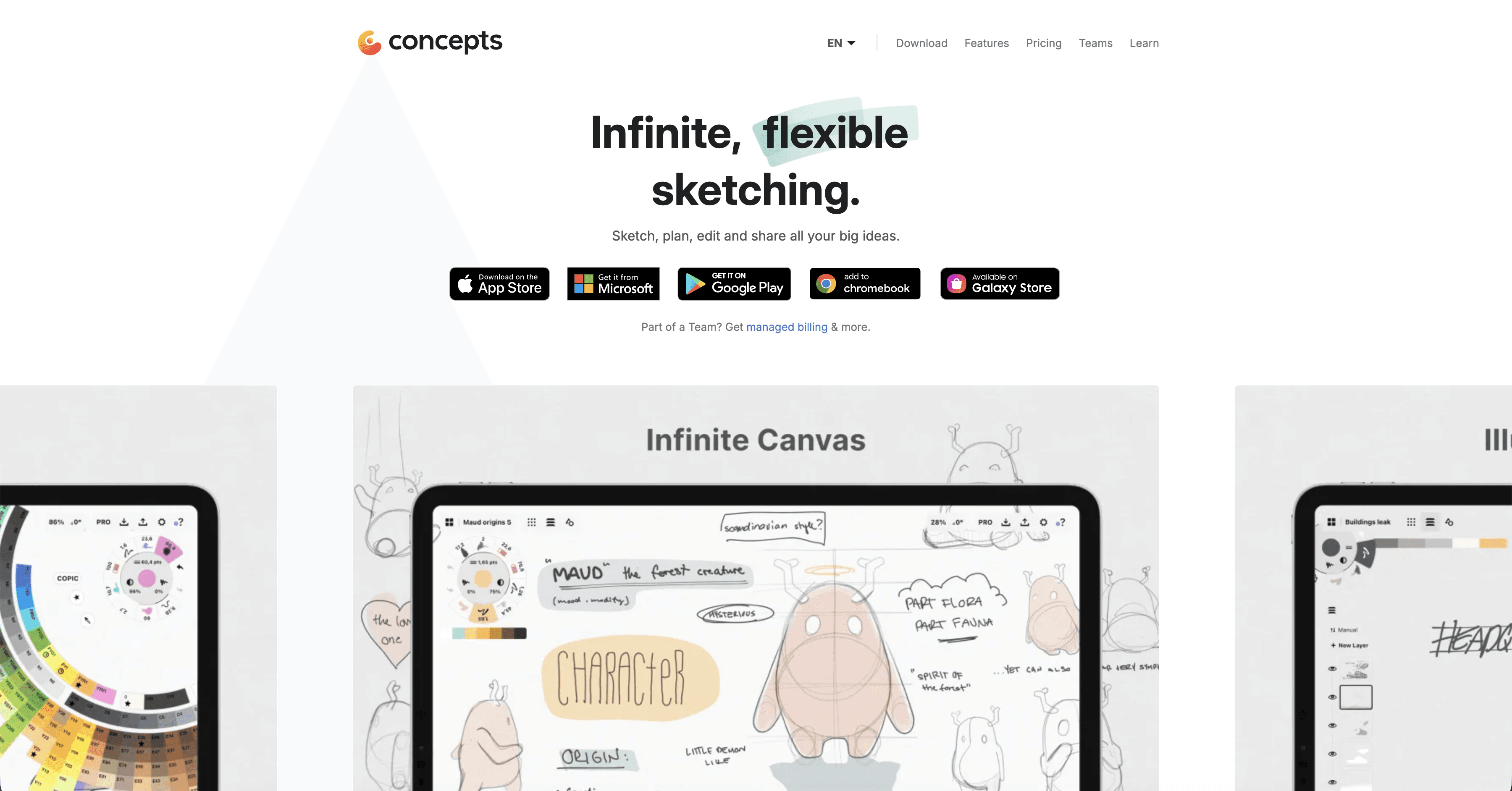
What it does: An infinite canvas sketching app that uses vector paths instead of pixels, making every stroke editable and scalable.
Key features:
Vector Engine: Every line you draw is a mathematical path. You can select a line you drew yesterday and change its color, weight, or length without erasing.
Infinite Canvas: There are no page borders; the workspace expands as you draw, which is ideal for sprawling site analyses.
Precision Tools: Includes scale guides and measurement tools similar to Trace but with vector flexibility.
Pros:
Editability: Moving a wall in a sketch does not require redrawing the background.
Resolution Independence: Drawings can be printed at billboard size without pixelation.
Cross-Platform: Works seamlessly on iPad, Windows (Surface), and Android.
Cons:
The vector "feel" is different from the pencil-on-paper feel of raster apps.
Exporting to standard formats like PSD can sometimes be complex due to the infinite canvas.
What users say:
Users often describe it as the bridge between CAD and hand sketching, praising the ability to "tweak" sketches rather than redraw them.
Pricing: Freemium model with one-time purchases for specific tool packs (Essentials, Brushes, etc.).
Best for: Schematic design and brainstorming where flexibility and editing are more important than artistic texture.
2/ Procreate
What it does: The industry standard for digital illustration, offering an unmatched brush engine for artistic architectural rendering.
Key features:
Brush Engine: Thousands of custom brushes that mimic watercolor, charcoal, marker, and pencil with incredible realism.
QuickShape: Automatically straightens lines and corrects circles, useful for quick diagrams.
Animation Assist: Allows architects to create simple GIFs showing a building assembling or a sun path moving.
Pros:
Visual Quality: Produces the most "artistic" and emotive drawings of any app.
Performance: Extremely fast and responsive, even with hundreds of layers.
One-time Cost: No subscription model.
Cons:
No Scale Tools: Unlike Trace, you cannot easily set a scale (e.g., 1:50) and measure distances.
Raster Only: Resizing drawings results in quality loss.
What users say:
Designers love the "feel" of the app but often complain about the lack of native architectural rulers and scale tools.
Pricing: One-time purchase (approx. $12.99).
Best for: Concept art, mood boards, and "loose" sketches where emotional impact outweighs technical precision.
3/ Bluebeam Revu (iPad)
What it does: The professional standard for PDF creation, markup, and editing in the construction industry.
Key features:
Tool Chest: Save custom markup symbols (door tags, revision clouds) for consistent use across the firm.
Studio Sessions: Real-time collaboration where multiple team members can mark up the same drawing simultaneously.
Calibrated Scales: Highly accurate measurement tools for verifying dimensions on PDF sets.
Pros:
Industry Standard: It is likely the software your engineers and contractors are already using.
Data-Rich: Markups are trackable data entries, not just drawings.
Integration: Seamlessly manages full construction sets, not just single images.
Cons:
Not for Sketching: The drawing tools are rigid and clinical; it is not for "designing."
Cost: Expensive compared to sketching apps.
What users say:
Project managers and technical architects swear by it for Construction Administration (CA) and redlining, noting that it eliminates version control issues.
Pricing: Subscription-based (part of the Bluebeam desktop ecosystem).
Best for: Redlining construction documents, site visits, and technical coordination.
4/ Sketchbook
What it does: A streamlined, no-nonsense sketching app that focuses purely on the drawing experience without complex menus.
Key features:
Minimal Interface: The UI disappears so you focus entirely on the drawing.
Perspective Guides: Simple toggleable guides for 1, 2, and 3-point perspective.
Copic Color Library: Built-in digital versions of the famous architectural markers.
Pros:
Low Barrier to Entry: Very easy to learn; you can start drawing in seconds.
Cross-Platform: Available on almost every device.
Focus: Does not overwhelm the user with too many features.
Cons:
Lacks the advanced layer management and scale tools of Trace.
Development has slowed down compared to competitors.
What users say:
Often cited as the best "napkin sketch" app for getting an idea down quickly without worrying about settings.
Pricing: Free (with paid "Pro" version on some platforms).
Best for: Quick ideation and students looking for a free alternative to Trace.
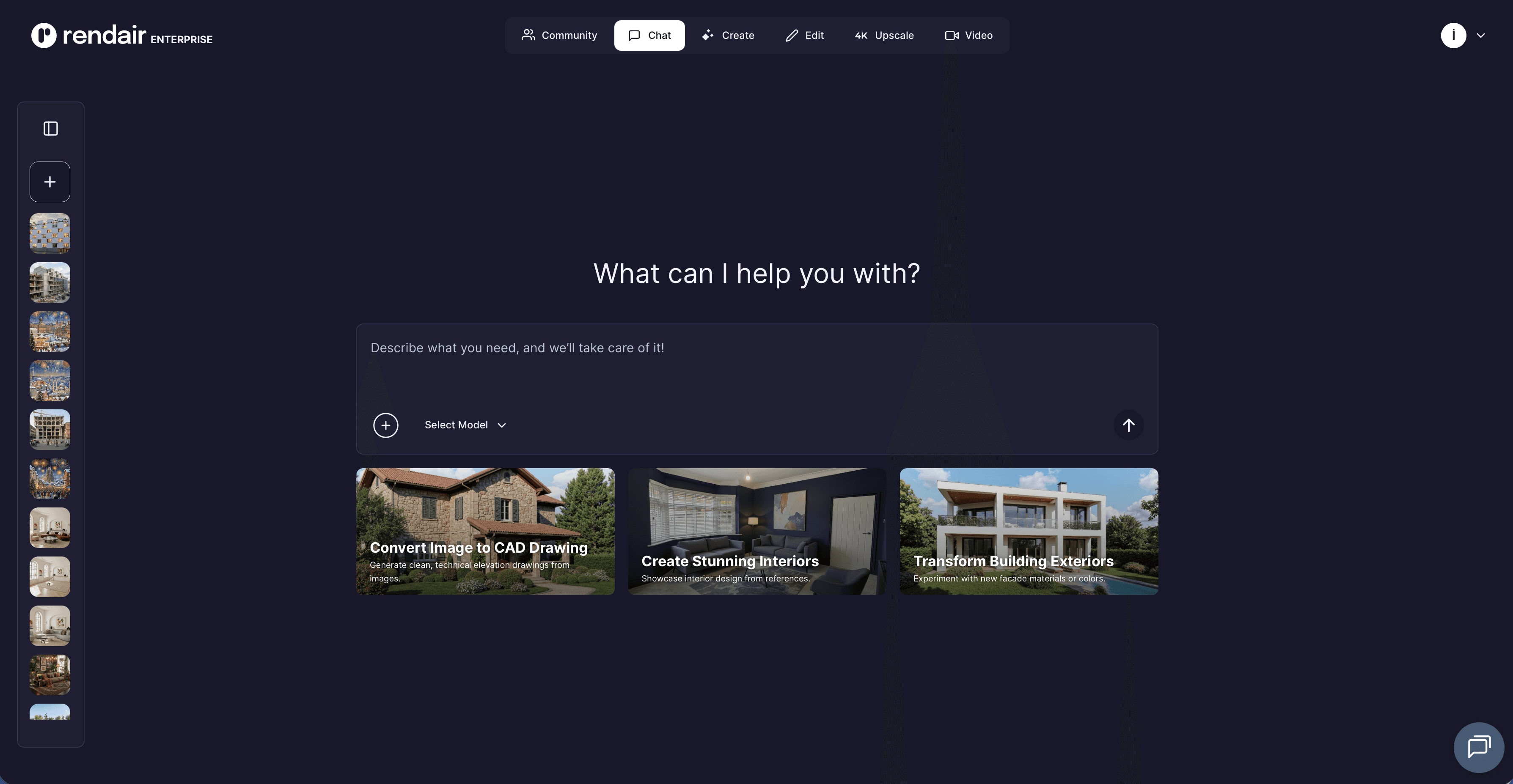
5/ Rendair AI
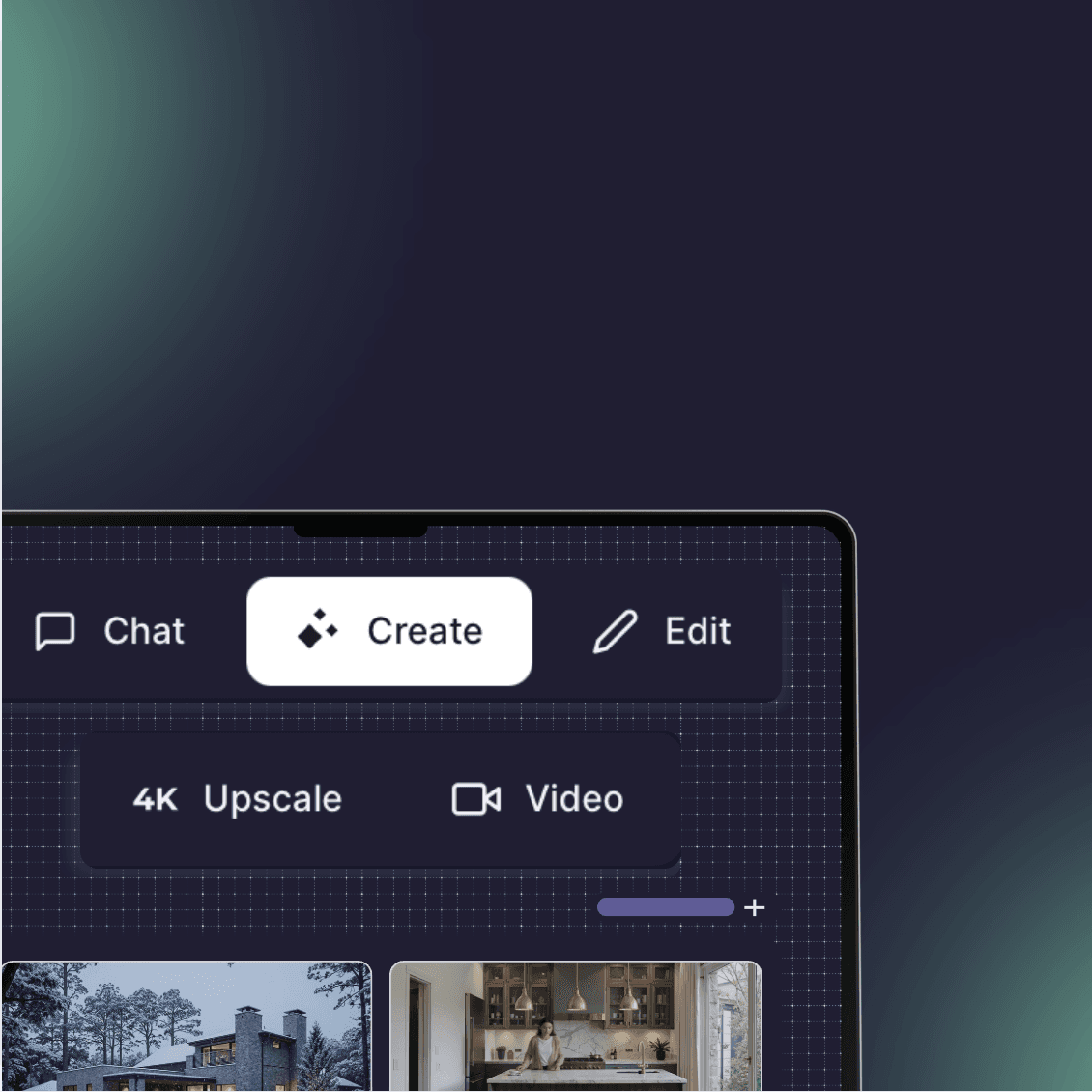
What it does: Generates professional architectural visualizations directly from rough sketches, replacing the need to manually color and texture drawings.
Key features:
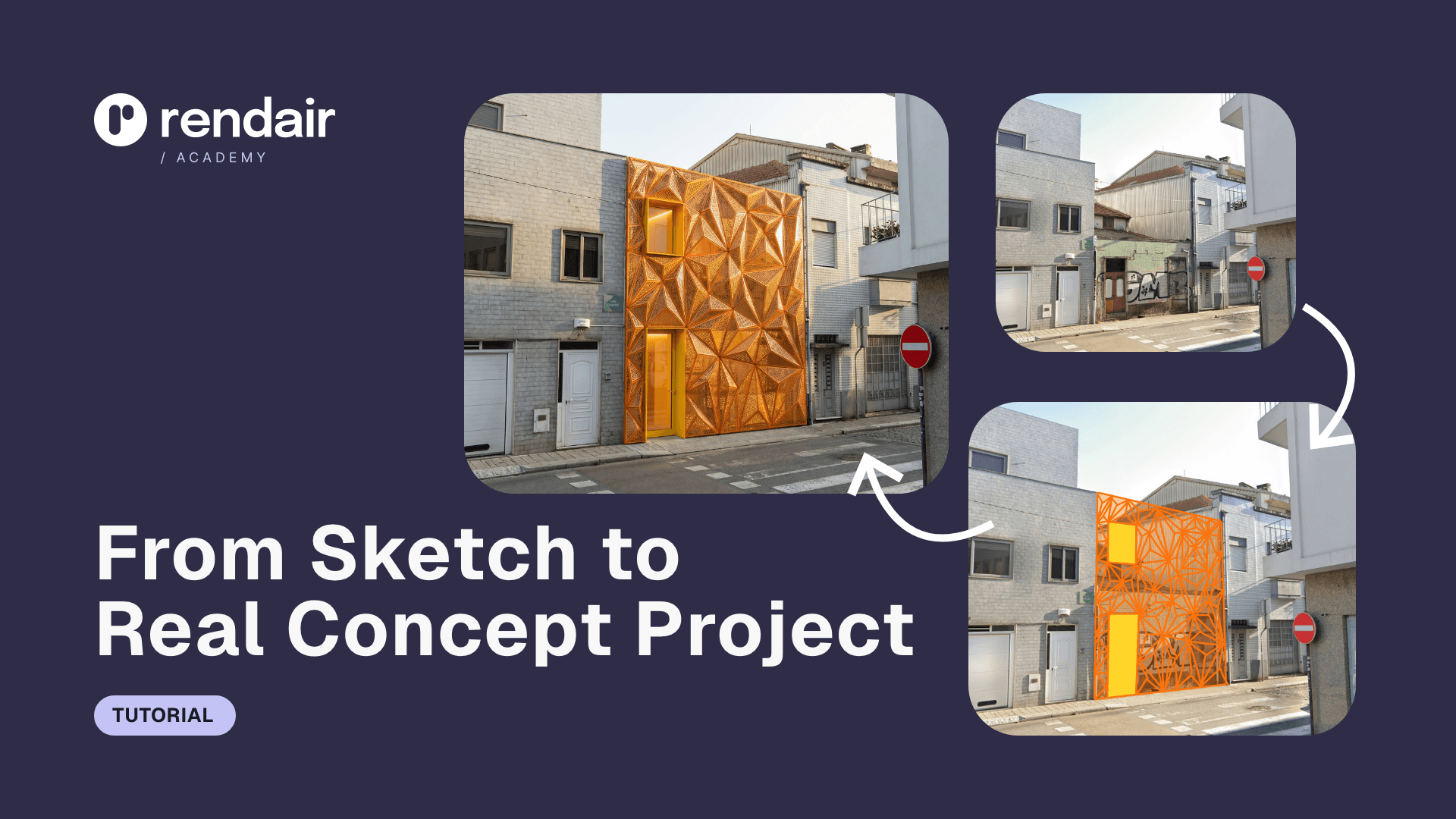
Sketch-to-Render: Upload a loose iPad sketch or a photo of a napkin drawing, and the AI converts it into a photorealistic image.
In-painting: Select specific areas of a render (like a floor or facade) to change materials instantly without redrawing.
Style Consistency: Maintains architectural accuracy while allowing you to explore different moods (e.g., "Nordic minimalism" or "Industrial loft").
Pros:
Speed: Reduces hours of manual shading and texturing to seconds.
Accessibility: No drafting skills required to get a polished result.
Iterative Power: Generate 10 variations of a facade in the time it takes to hand-draw one.
Cons:
Not a drafting tool (you cannot draw a measured floor plan from scratch).
Best used as a companion to a sketching workflow, not a total replacement for line work.
What users say:
Architects frequently note that it shifts their workflow from "drawing for hours" to "curating options," allowing them to show clients polished visuals much earlier in the design phase.
Pricing: Flexible plans (Subscription options).
Best for: Architects who use Trace primarily for visualization and client presentations rather than technical drafting.
Bottom line:
Choose Rendair AI if your goal is to turn sketches into client-ready visuals instantly.
Choose Concepts if you need the technical flexibility of vector lines and cross-platform support.
Choose Procreate if you want the most beautiful, artistic hand-drawn look.
Choose Bluebeam if you are marking up construction sets and need precision.
Choosing what fits your workflow
Not every tool makes sense for every project. Match software to your actual bottlenecks:
Speed vs. Control: Do you need to show a client a concept in 10 minutes? Use Rendair. Do you need to detail a window joinery? Use Concepts or Trace.
Team Size: Solo architects often prefer the freedom of Procreate. Large firms usually require the standardization of Bluebeam.
Budget Reality: Factor in the time cost. A cheap app that requires 4 hours of manual coloring is more expensive than a tool that does it in 5 minutes.
Start with the tool that addresses your most frequent friction point. You can always expand your toolkit as projects demand it.
The "Sketch + AI" Workflow
The most efficient modern workflow often involves mixing these tools. Experienced designers are increasingly using apps like Concepts or Procreate to create the initial black-and-white linework, and then moving immediately to Rendair AI to handle the materials, lighting, and atmosphere.
This hybrid approach allows you to keep the control of hand-sketching while leveraging the speed of AI for the heavy lifting of visualization. It removes the need to be an expert renderer to sell an expert design.
Recent Posts


Join 500,000+ architects who saved time. No credit card needed for your first 20 credits.