Top Plugins and Extensions for Affinity Designer
Jan 20, 2026
If you are looking for a "Plugins" menu in Affinity Designer like the one in Adobe Illustrator, you won’t find it. Affinity has historically kept its ecosystem closed to traditional code-based plugins to maintain its legendary speed and stability.
But that doesn’t mean you can’t extend it.
Professional designers and architects don't rely on the default tools alone. They build their own "plugin" ecosystem using advanced asset libraries, companion apps, and raster filters that integrate seamlessly.
Here are the tools that actually power up Affinity Designer in 2025.
1/ The "Missing Features" Companion
VectorStyler
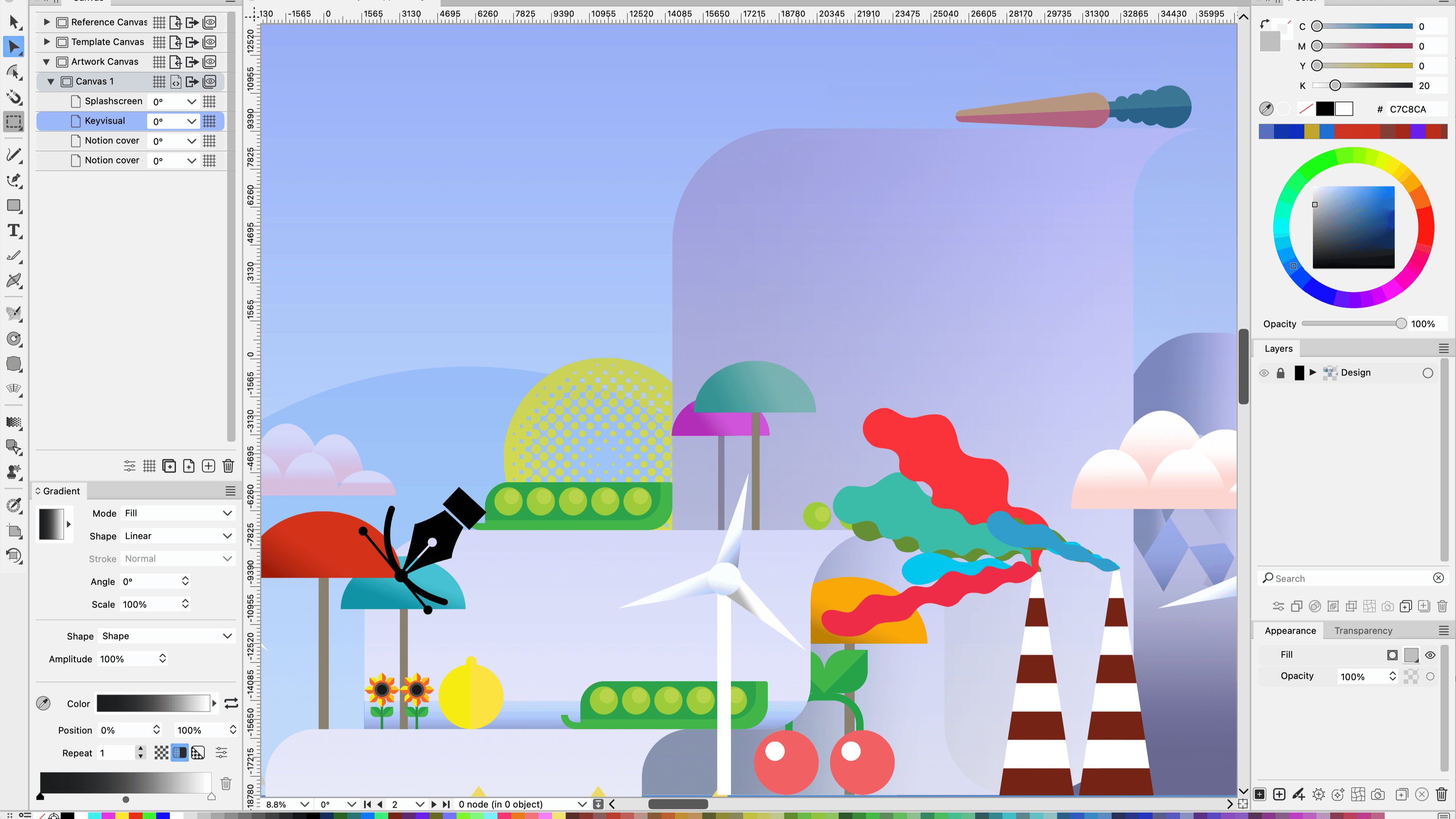
Technically a standalone app, but for Affinity users, it is the unofficial "Advanced Vector Plugin."
Why it matters: Affinity Designer is famous for lacking true vector warping and distortion tools (like Envelopes or Mesh Warps). VectorStyler fills this gap perfectly. You can copy vectors from Affinity, paste them into VectorStyler, apply complex warps or distortions, and paste them back into Affinity as editable curves.
Best for: Advanced shape manipulation, warping text to curves, and complex vector distortions that Affinity can't handle natively.
Ghost (by GhostCD)
A lightweight utility that sits between your design tools.
Why it matters: It acts as a bridge, allowing you to copy-paste SVG code directly as vectors between apps that don't normally talk to each other well.
Best for: moving assets between Affinity, Figma, and other vector tools without exporting files.
2/ Texture & Shading Engines
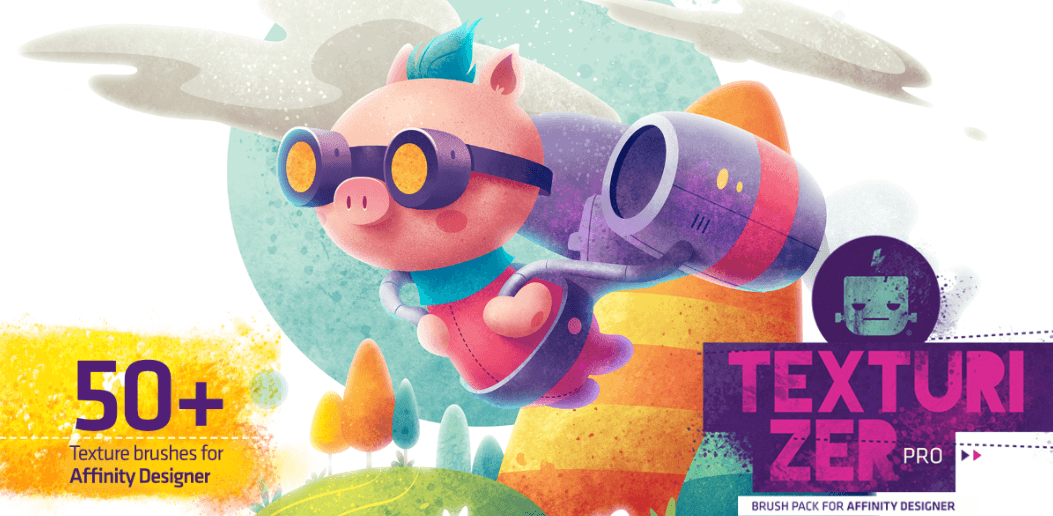
Frankentoon Texturizer Pro
A massive library of texture brushes that function like a shading engine.
Why it matters: In architectural and concept rendering, flat vectors look cheap. Frankentoon’s brushes allow you to paint depth, grime, and shadow directly onto vector shapes using the Pixel Persona, without leaving the file. It turns flat elevations into textured illustrations.
Best for: Adding realism to flat architectural elevations and concept art.
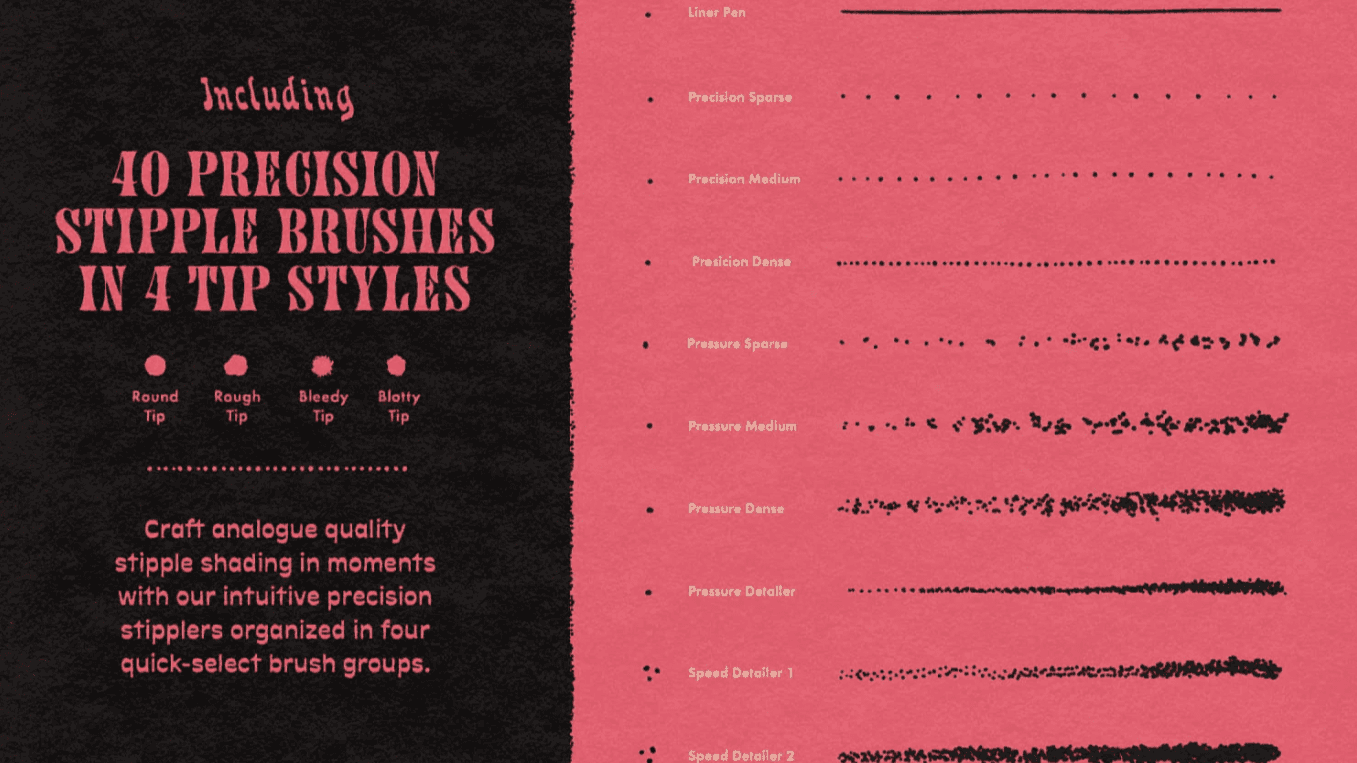
True Grit Texture Supply: Stipple Studio
A brush system that automates the tedious process of stippling (dot shading).
Why it matters: Stippling adds a classic "architectural print" look but takes hours to do manually. This tool lets you paint thousands of vector or raster dots in seconds, grading them automatically for shadow and light.
Best for: Retro architectural diagrams, print-ready illustrations, and shading complex organic forms.
3/ The Architect’s Toolkit
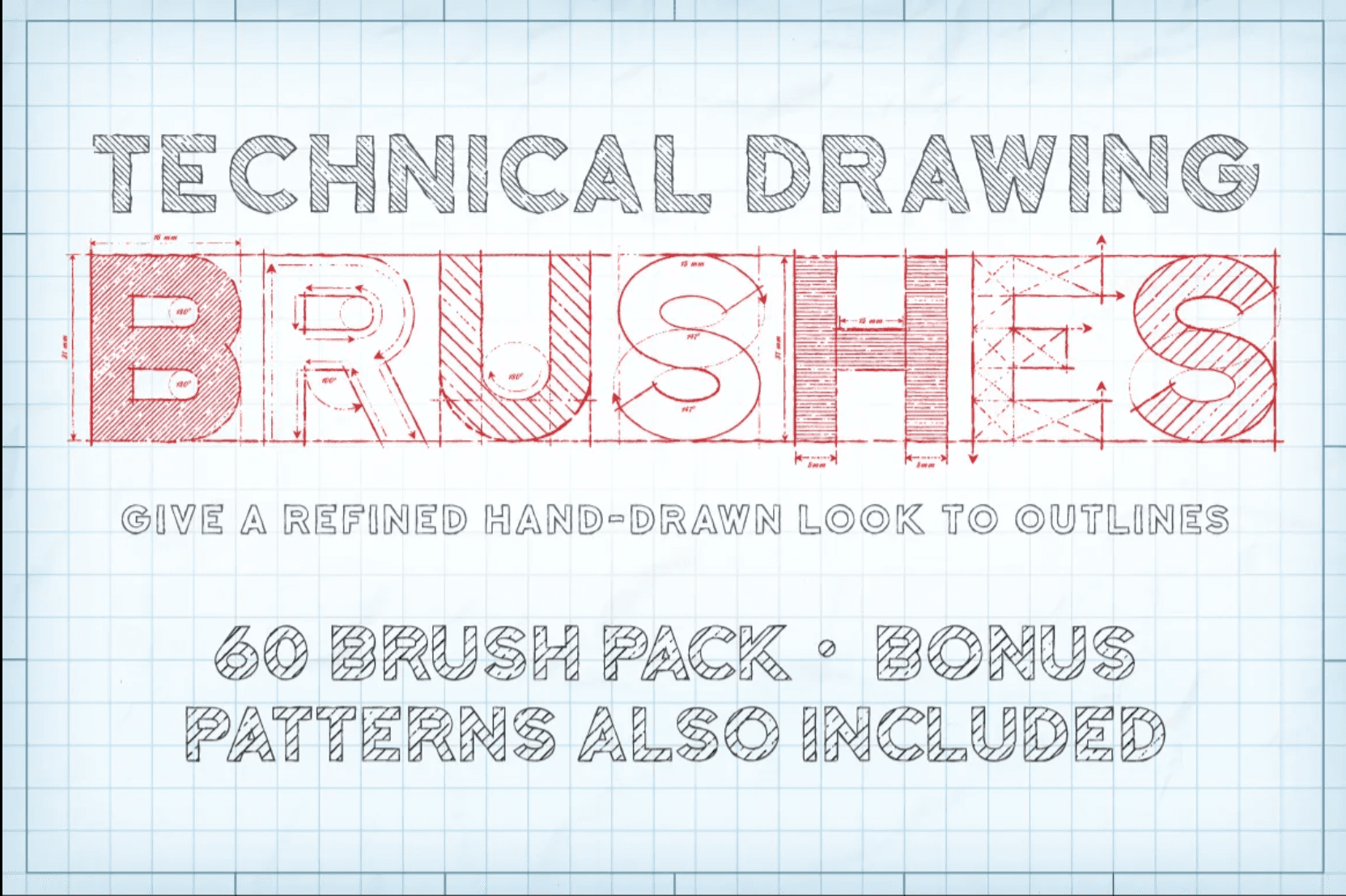
Artifex Forge: Technical Drawing Brushes
A dedicated set of brushes designed to mimic vintage blueprints and technical pens.
Why it matters: Standard vector lines are too mathematically perfect, they lack the "human hand" of a sketch. These brushes add slight bleed and irregularity, making digital CAD exports look like hand-drawn ink schematics.
Best for: Client presentations where you want a "drafted" look rather than a cold CAD export.
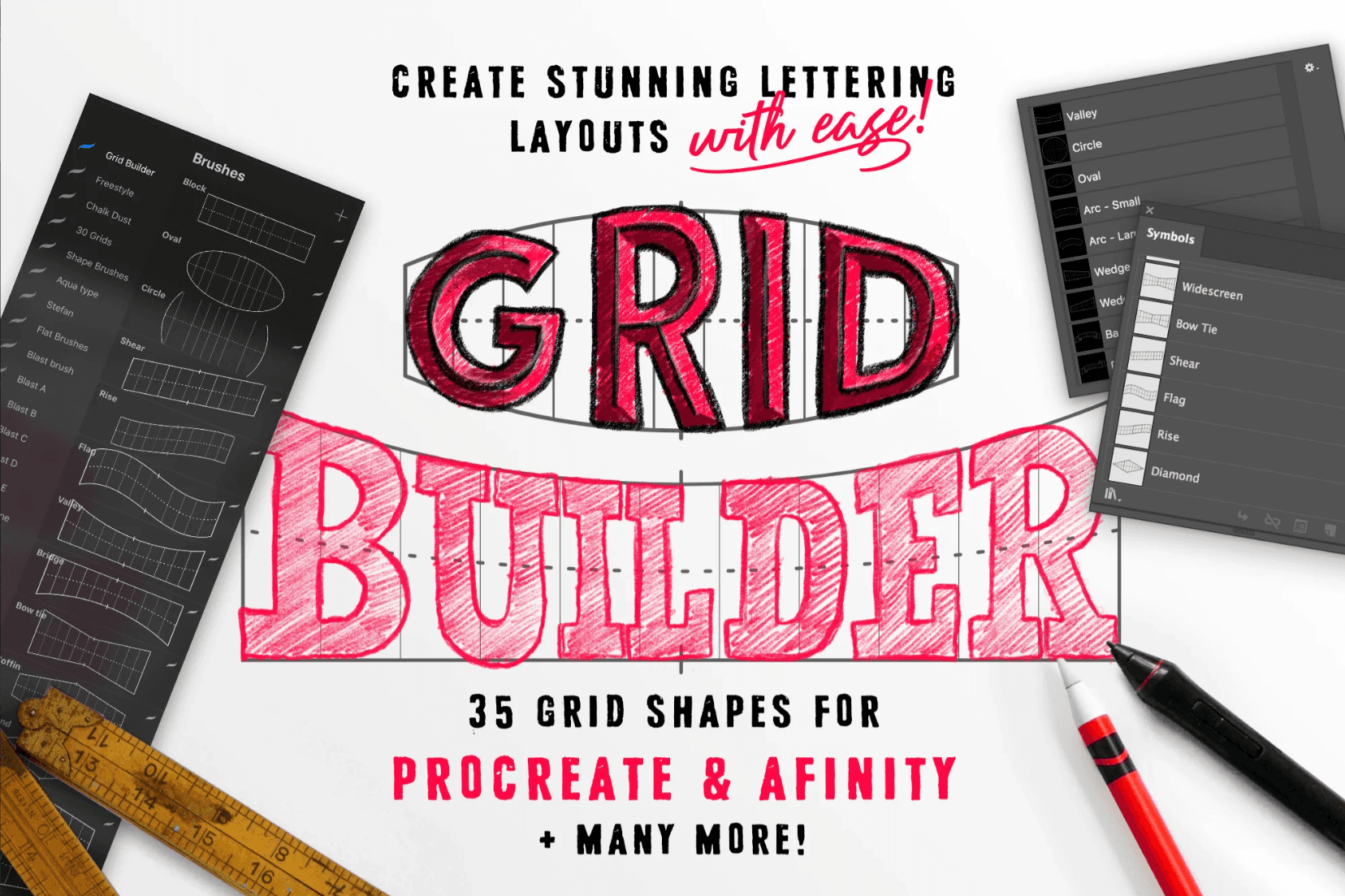
Grid Builder (by Ian Barnard)
A set of drag-and-drop assets that instantly create complex perspective grids.
Why it matters: Setting up 3-point perspective grids manually is slow. These assets snap into place, giving you an instant framework for drawing complex interiors or exteriors correctly.
Best for: Sketching initial building concepts and interior layouts in accurate perspective.
4/ The Analog Aesthetic
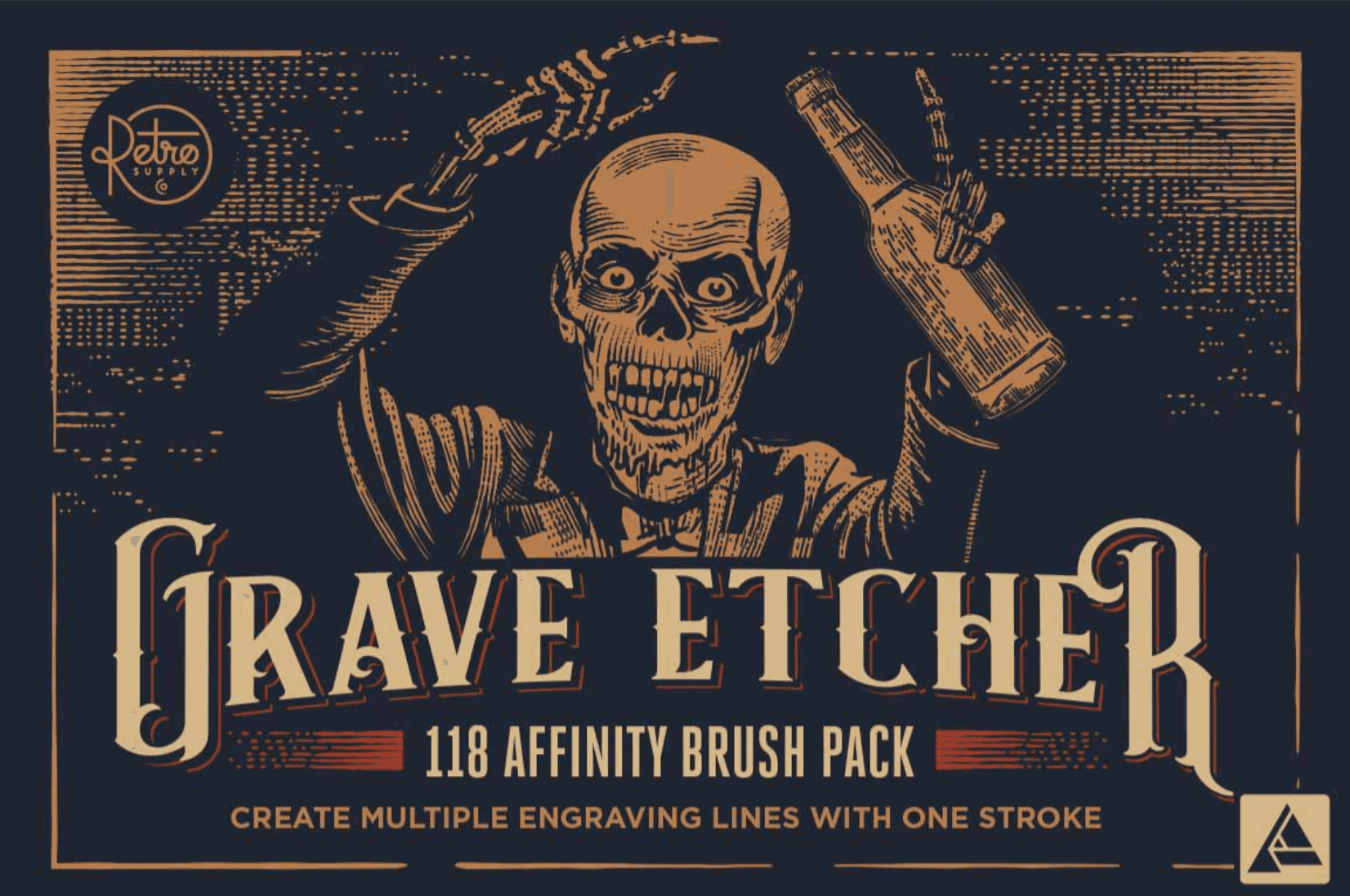
RetroSupply Co: Grave Etcher
A set of engraving brushes that mimic vintage etching styles.
Why it matters: It allows you to create "banknote style" illustrations or vintage architectural etchings purely with vectors. It uses a smart latching system so lines don't overlap messily.
Best for: High-end branding, heritage building illustrations, and certificate design.
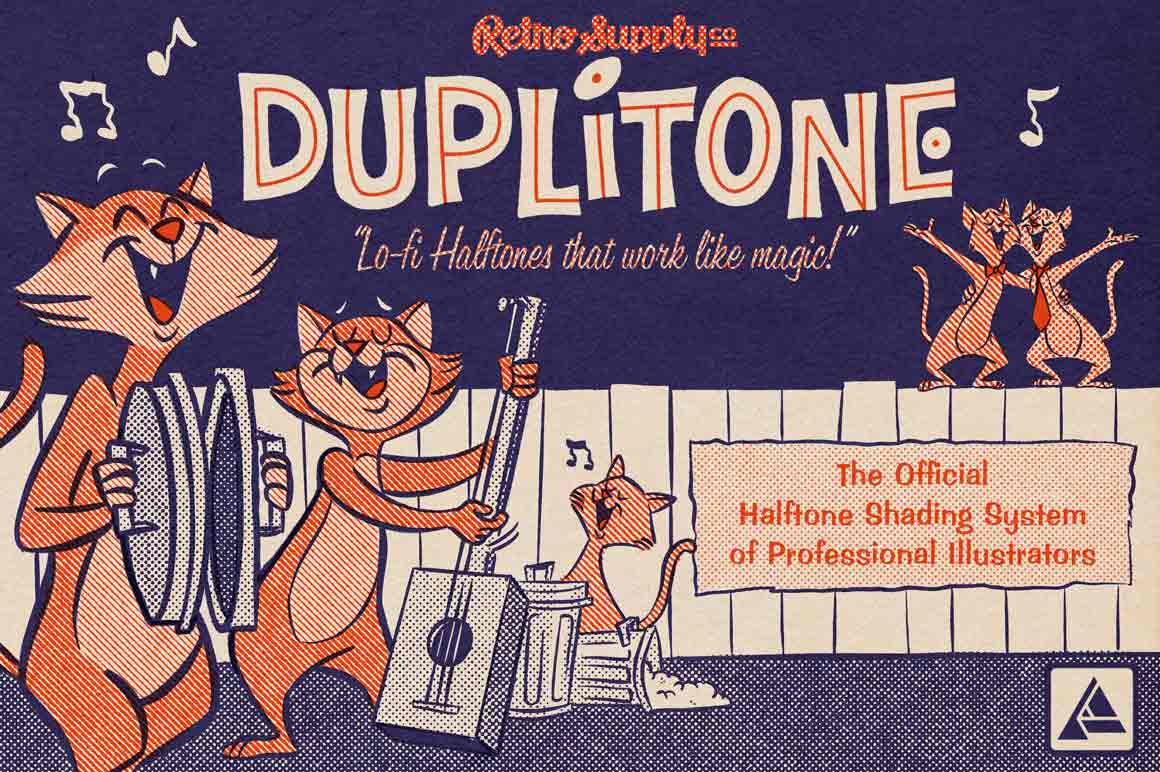
DupliTone
A halftone system that works like a plugin.
Why it matters: Most halftone patterns are static overlays. DupliTone lets you paint halftones that react to pressure and color, allowing for "comic book" style shading that scales infinitely.
Best for: Stylized renders and marketing materials that need a pop-art or printed aesthetic.
5/ Pixel Persona Power-Ups
Nik Collection (by DxO)
While Affinity doesn't support vector plugins, its Pixel Persona supports Photoshop-compatible filters.
Why it matters: You can switch to the Pixel Persona and apply industry-standard color grading, sharpening, and black-and-white conversion filters to your raster layers without leaving Affinity.
Best for: Final polish on rendered images, correcting lighting in mixed-media collages, and atmospheric effects.
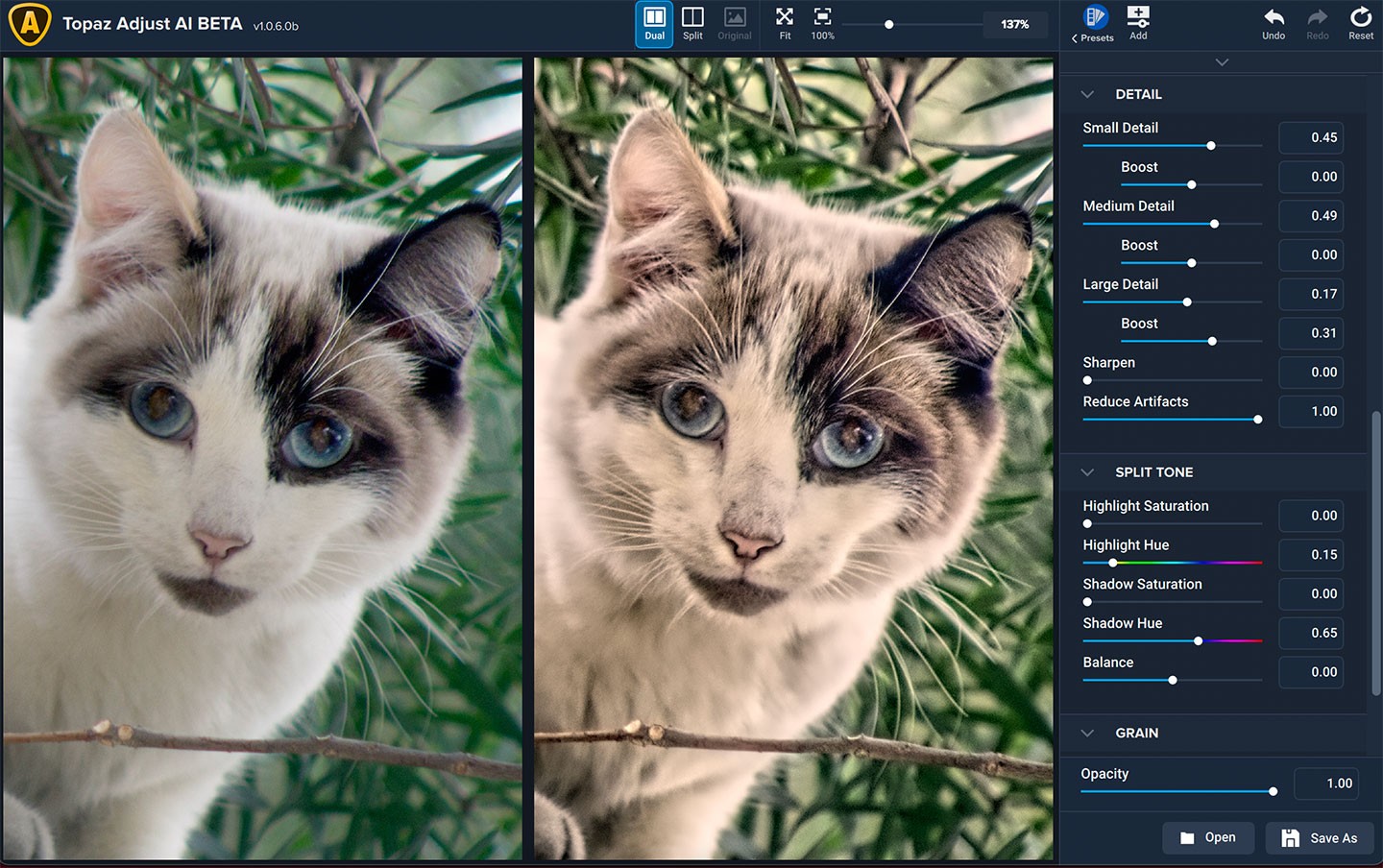
Topaz Labs (Sharpen/Gigapixel)
Often used as external handlers via the Pixel Persona.
Why it matters: When you import a low-res client logo or a grainy site photo, these AI upscalers clean them up so they don't ruin your crisp vector layout.
Best for: Prepping low-quality client assets for high-res print boards.
Choosing what fits your work
Since Affinity doesn't have a centralized "Plugin Store," you have to curate your own toolkit.
If you do technical work: Get the Artifex Forge Technical set.
If you do illustration: Get VectorStyler and Frankentoon.
If you do photo-bashing: Set up Nik Collection in your Pixel Persona.
Don't buy everything, buy the one tool that solves the friction you feel every day.
Bonus: Speed up rendering without leaving your workflow
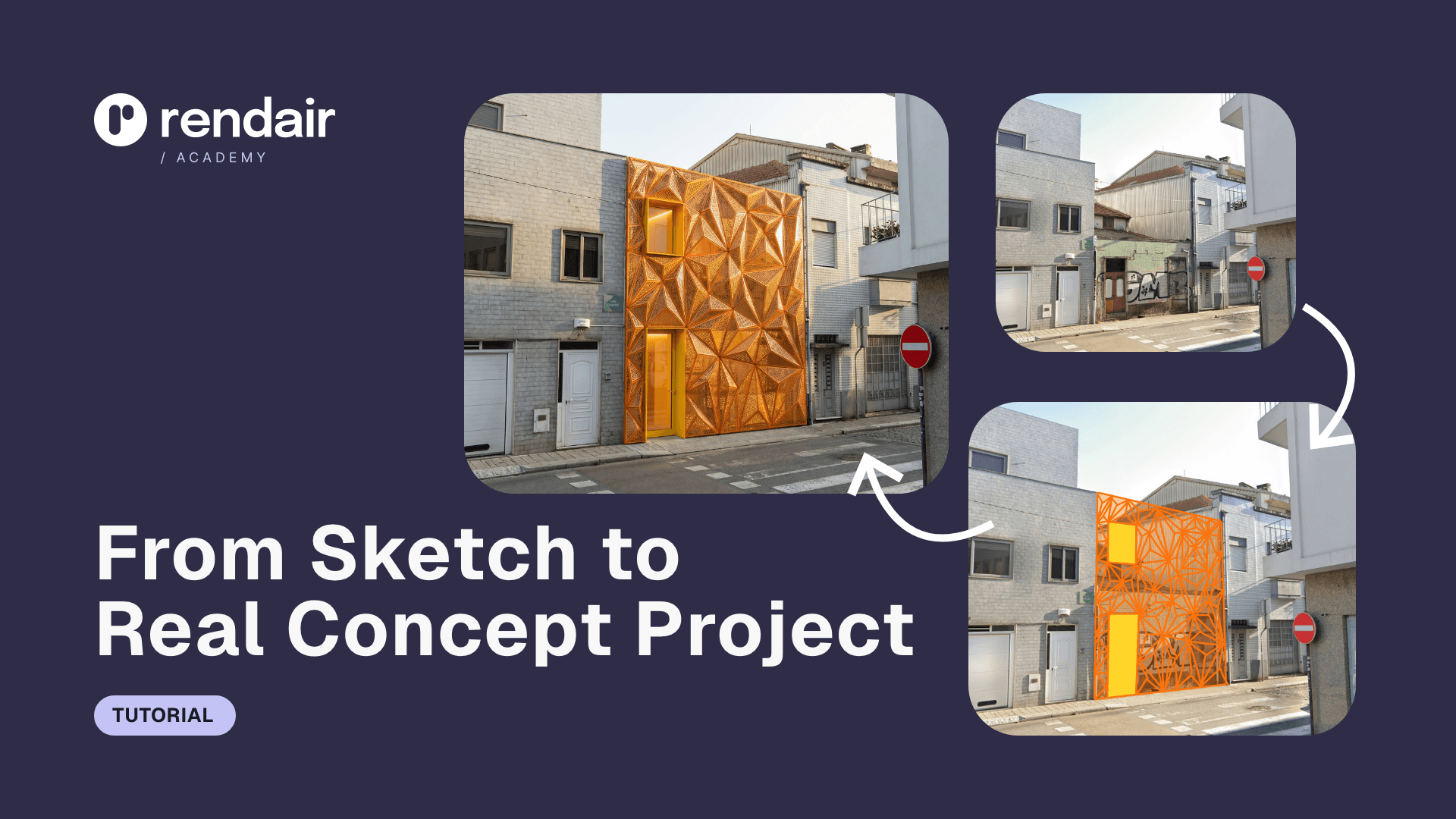
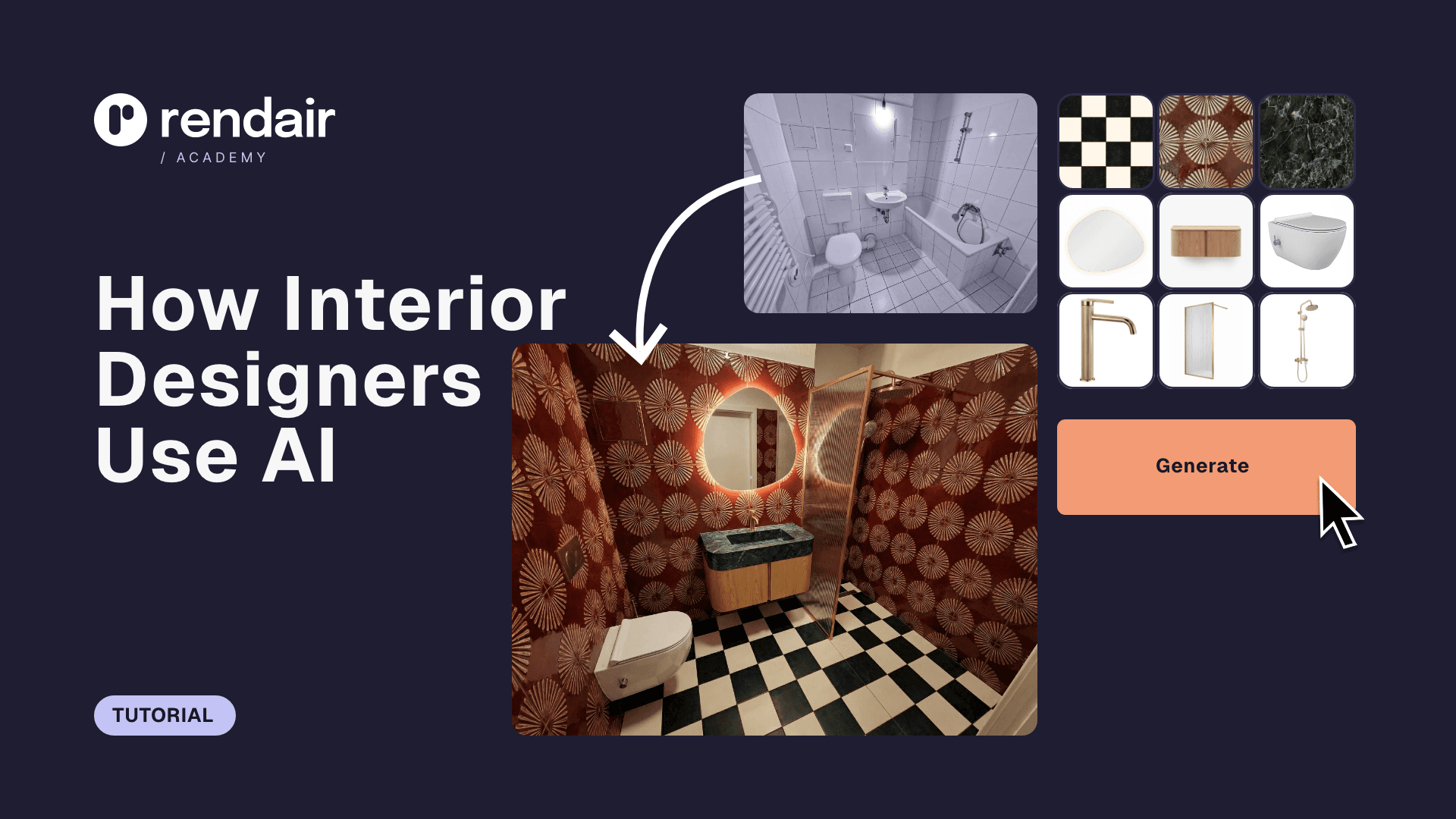
If you are using Affinity Designer to touch up renders because your rendering software is too slow, Rendair is the better fix.
Upload your rough Affinity sketches or basic exports, and let AI generate presentation-ready visuals in minutes. It preserves your architectural intent while saving you hours of manual texturing.
Start creating – try it free
Recent Posts



Join 500,000+ architects who saved time. No credit card needed for your first 20 credits.