How to Insert a 3D Model into a Real Location and Get a Super Realistic Render
4 déc. 2025
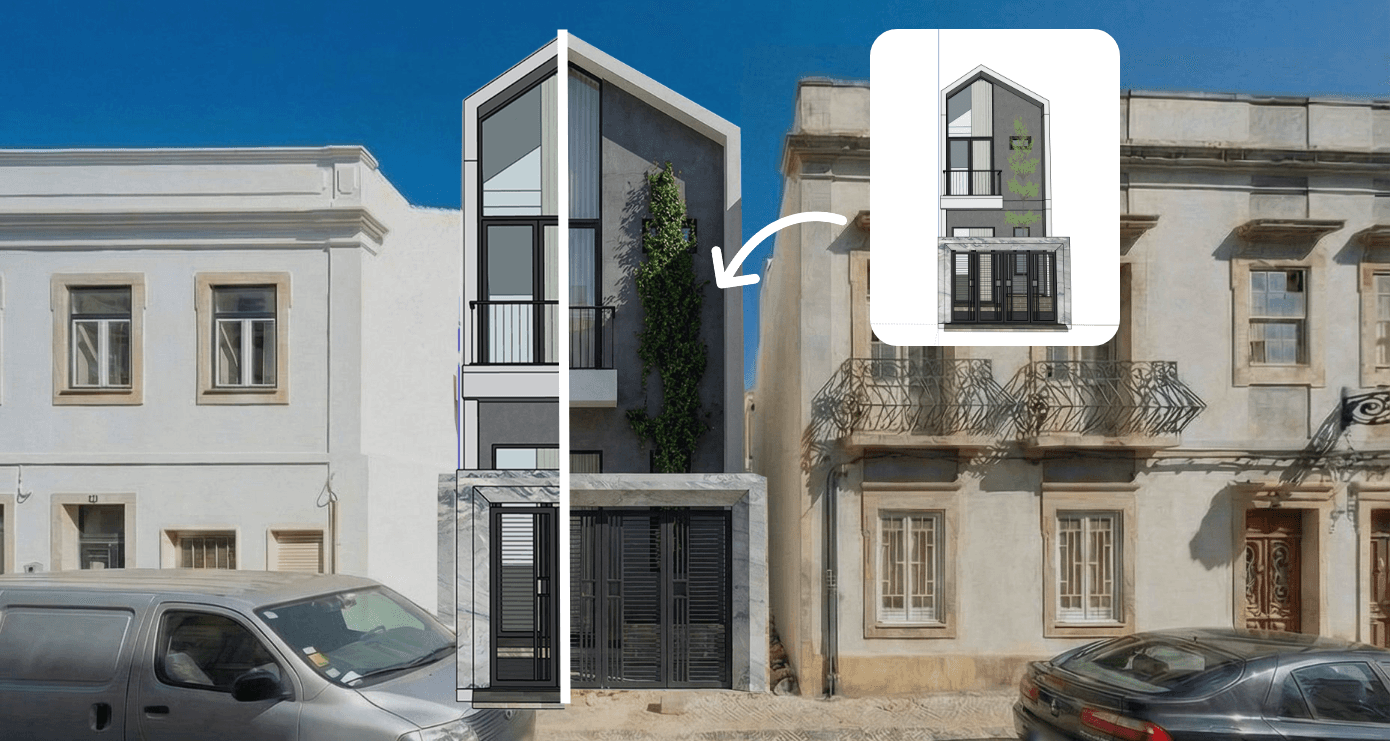
Integrating a 3D model seamlessly into a real environment can transform your presentation, portfolio, or client proposal. With Rendair AI, this process becomes fast, intuitive, and incredibly realistic.
In this guide, I will show you how to place your architectural model into a real world location and create a stunning, photorealistic result in just a few steps.
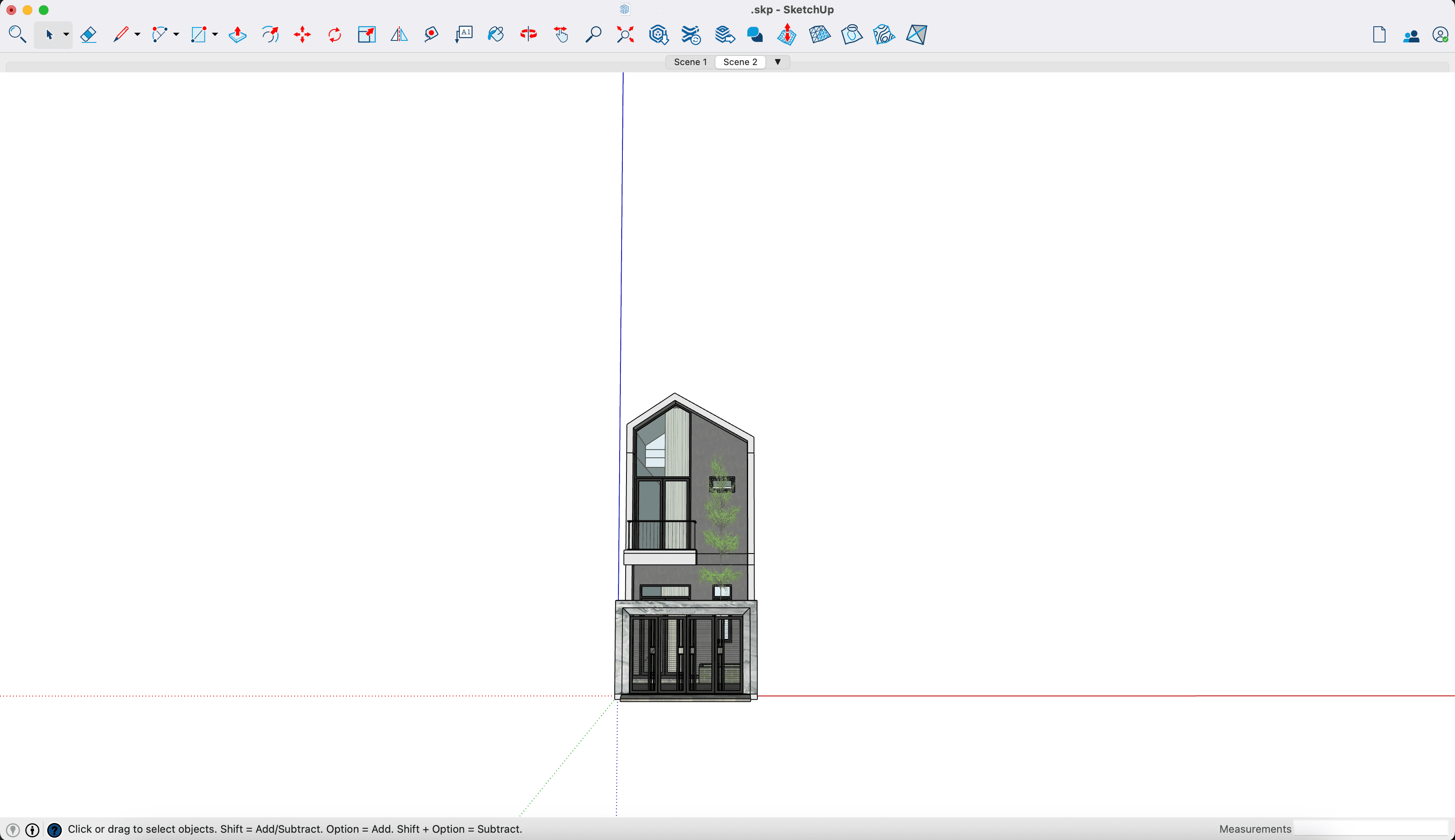
Step 1: Position Your 3D Model and Take a Screenshot
Open your architectural 3D model (SketchUp, Revit, Blender, etc.) and position the camera to match the angle and perspective of your site photo as closely as possible.
Then take a clean screenshot of your model.
Tip: Try to align the horizon and approximate camera height. This will help Rendair AI generate a more realistic match.
Step 2: Capture or Screenshot the Real Site Location
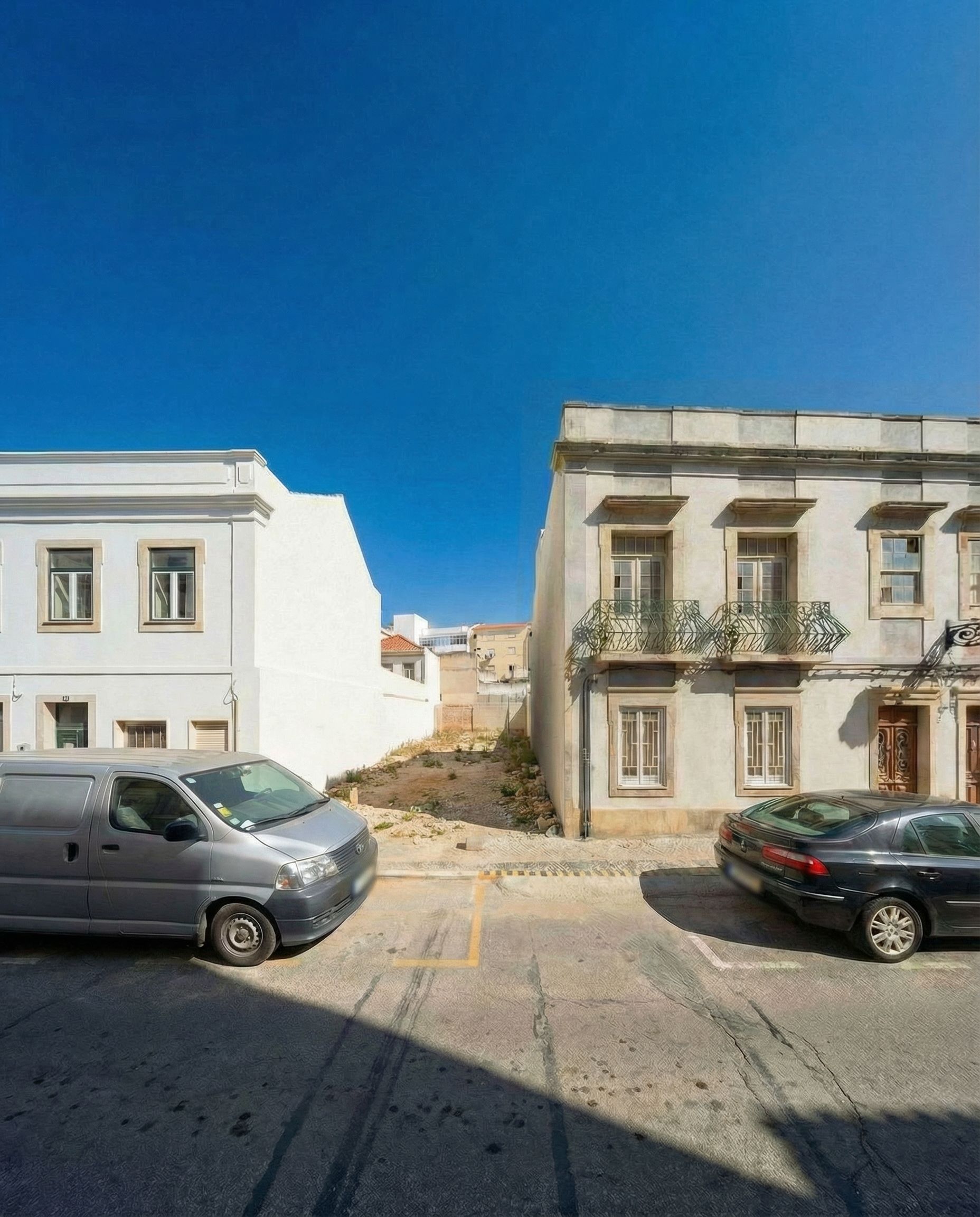
You have two options:
Take a photo directly from the real location
Or grab a high resolution screenshot from Google Maps / Street View
Make sure the site image is clear and the perspective is understandable.
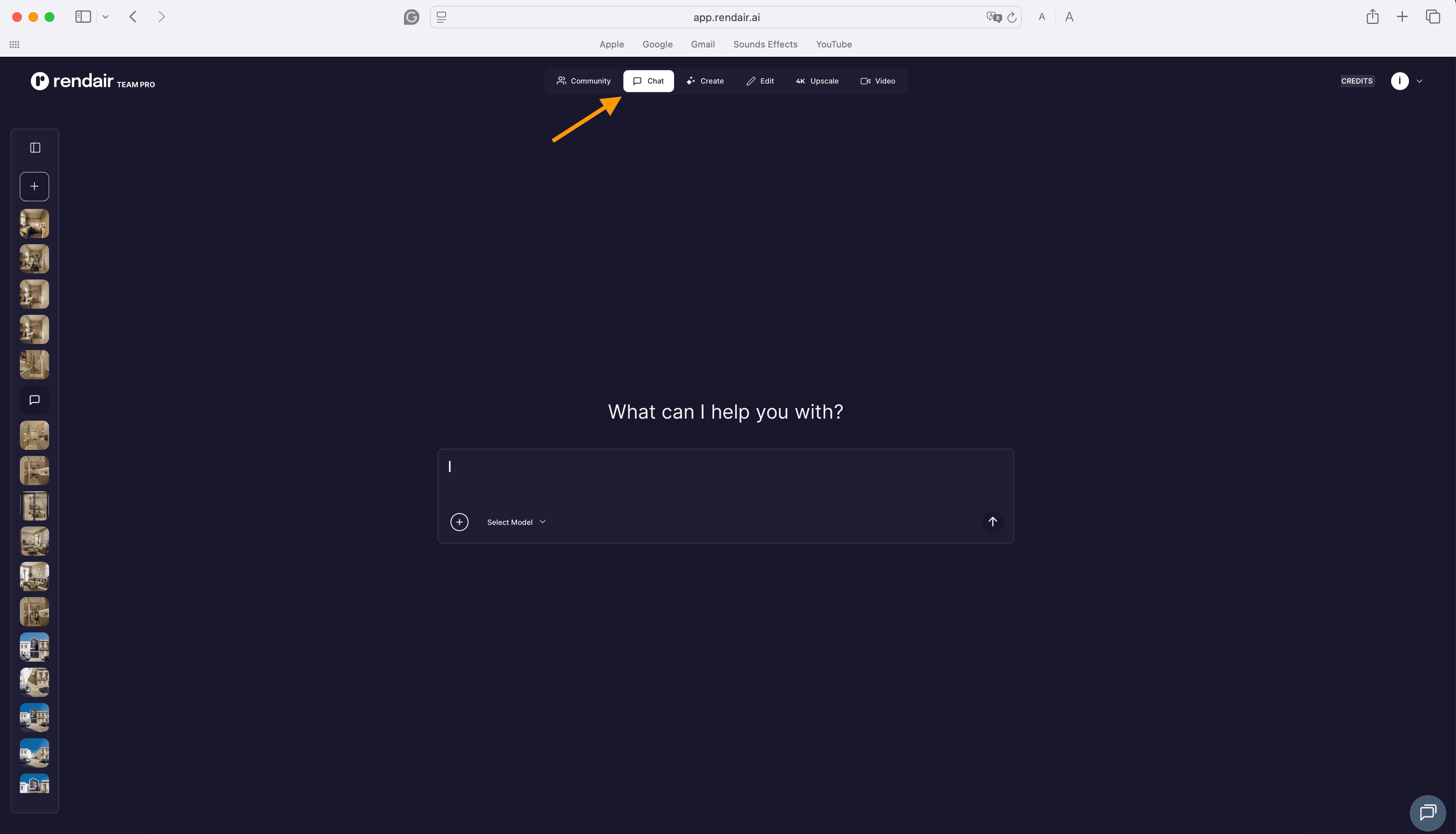
Step 3: Open Rendair AI and Go to Chat
Go to Rendair AI and open the Chat interface.
This is where the magic happens.
Step 4: Upload Both Images
Upload:
The real site image
The screenshot of your 3D model
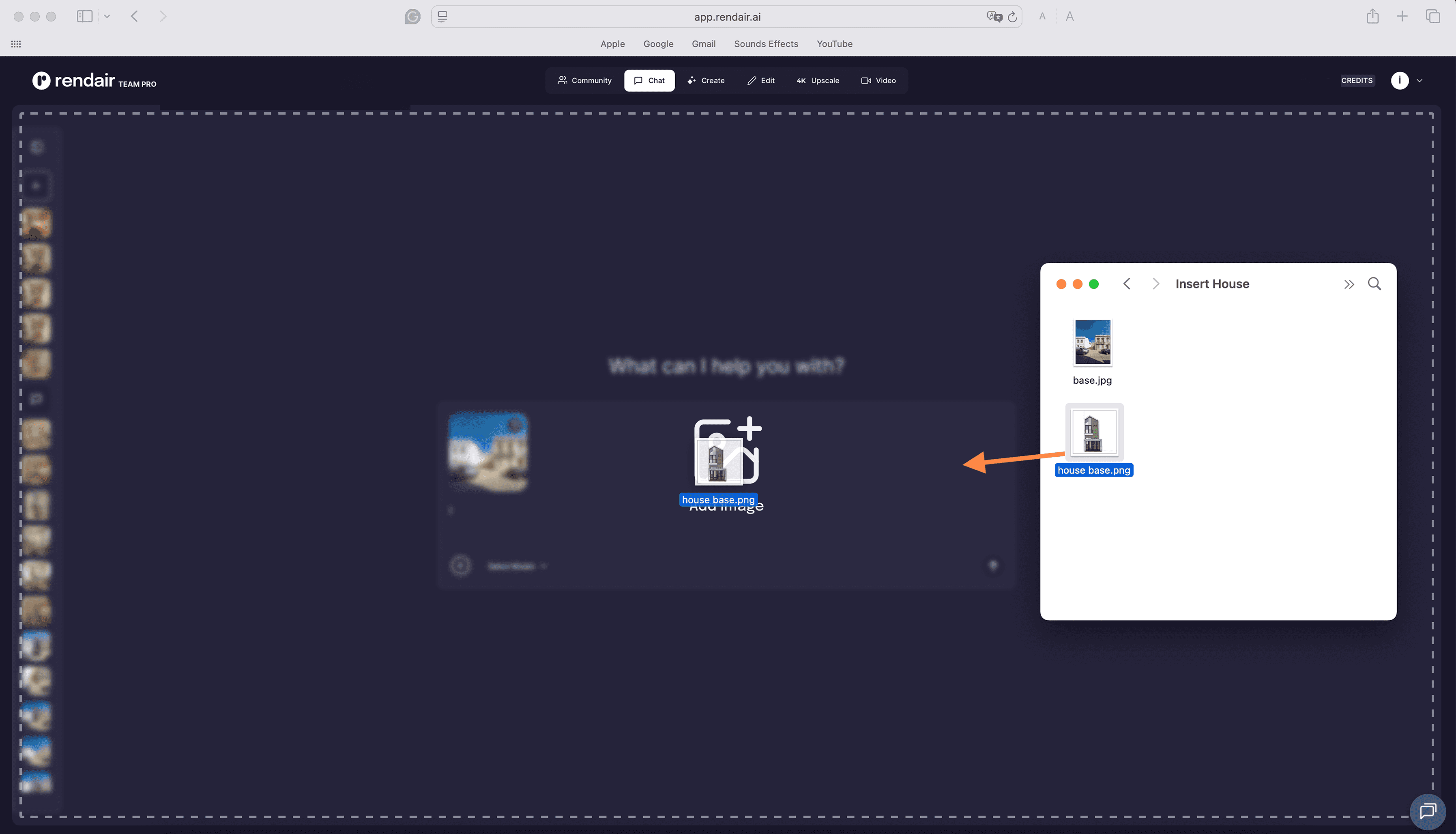
Step 5: Send the Prompt
Select a Model, in this case I will use Nano Banana Pro and enter a simple prompt:
Insert this house from the second image into the first image between the two houses. Match lighting, shadows, and realism.
Then hit okay.
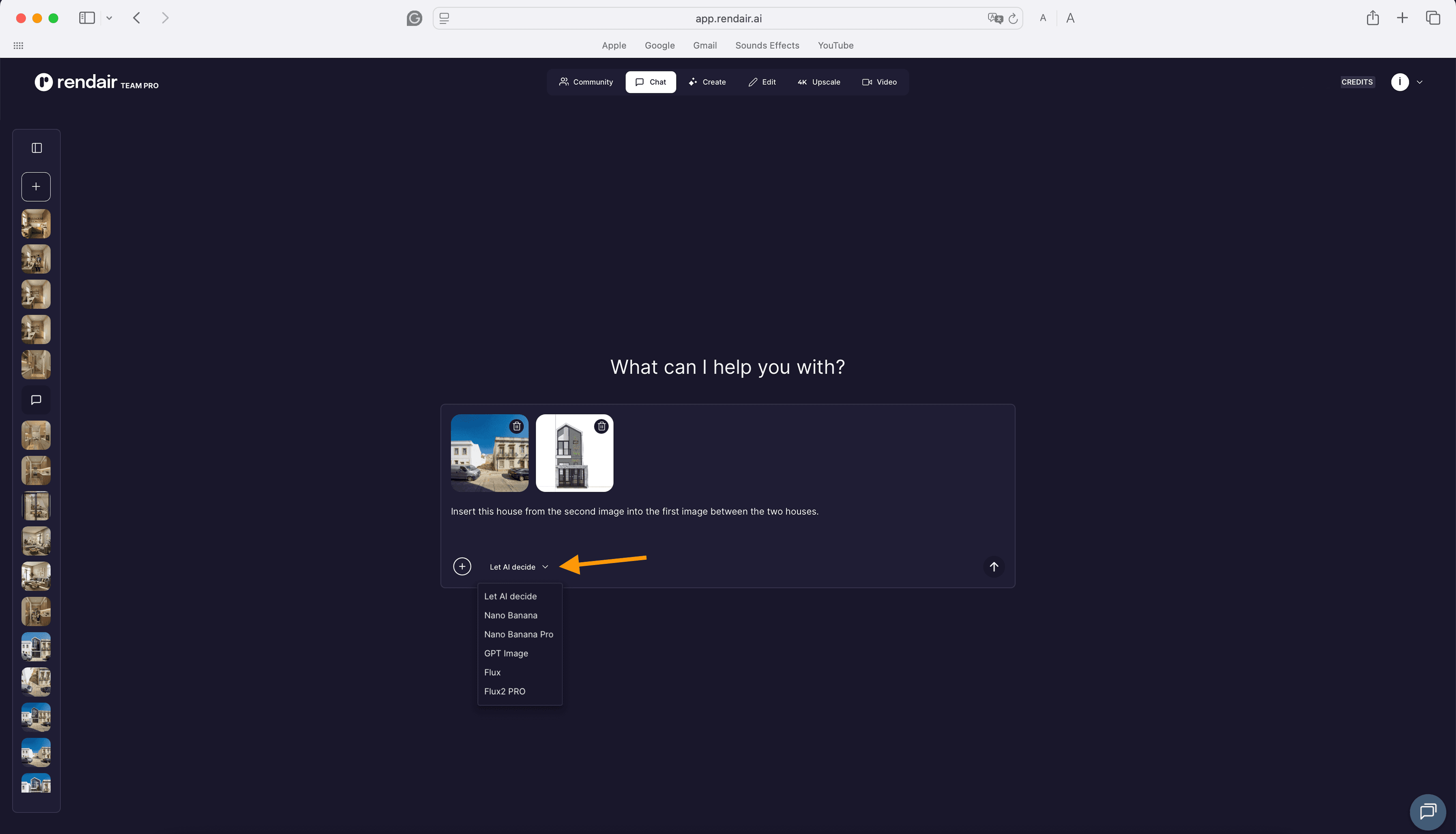
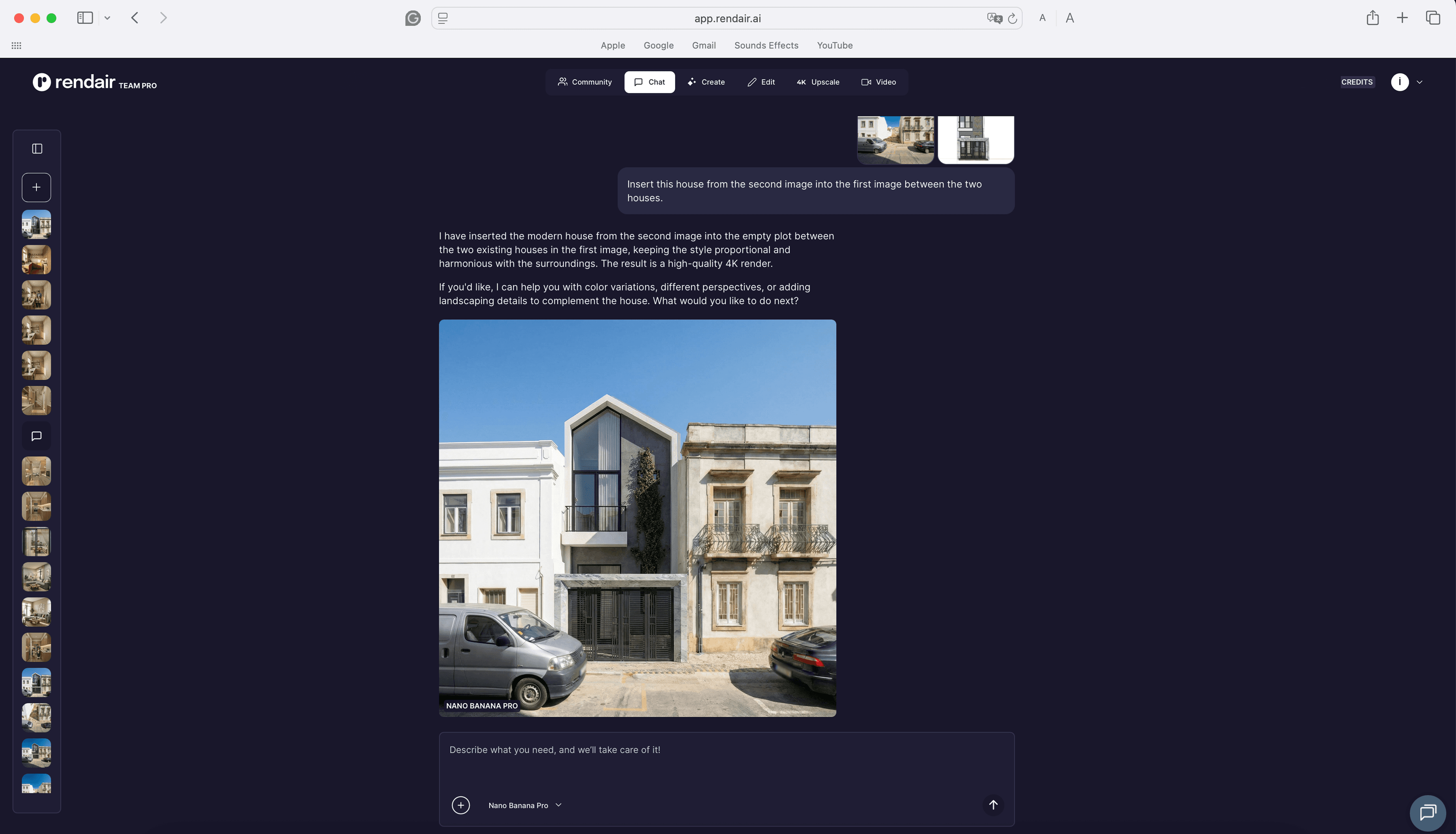
Final Result
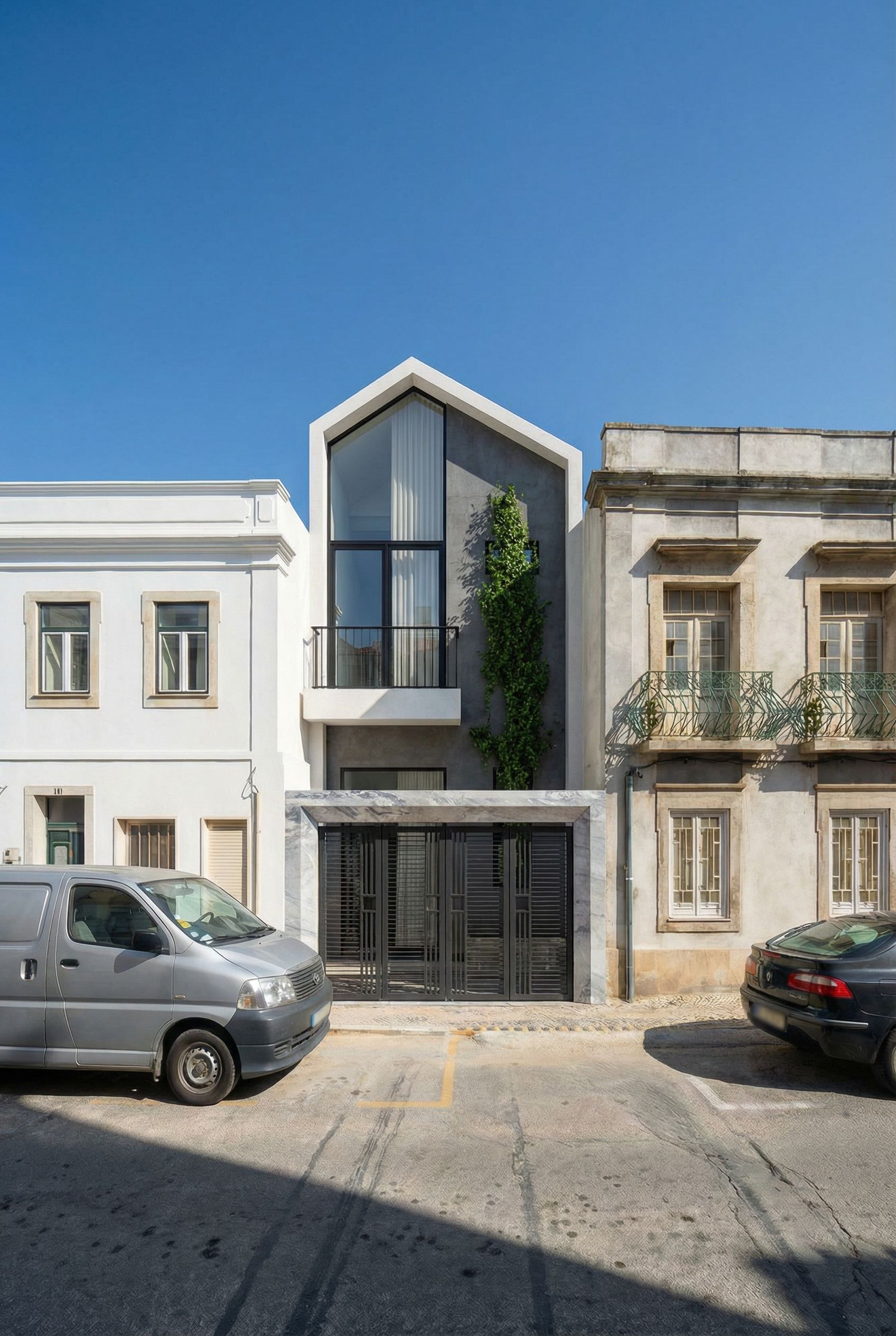
You will receive a super realistic render, seamlessly integrating your 3D model into the real environment.
Why This Method Works
No need for manual Photoshop masking
AI adjusts light, shadow, depth, and materials
Perfect for client presentations, competitions, feasibility studies, or design testing
Works even if your model is not fully finished
You can regenerate results until you get the exact realism you want
Conclusion
Placing your design into the real world is one of the fastest ways to communicate your vision clearly and convincingly.
With Rendair AI, you can create professional integration visuals in minutes, not hours.
Ready to try it?
👉 Open Rendair AI and start integrating your models today