Rendair AI | Christmas Design Competition Announcement!

10/12/2025
How To Join And Win An Annual PRO Plan 🎄
This Christmas we are turning Rendair AI into a giant creative playground.
You can design a cozy family house in the snow, a museum wrapped in lights, a futuristic skyline dressed for Christmas, or even transform a real photo of your city into a winter wonderland.
In this guide I will explain what the Rendair AI Christmas Competition is, what you can win, and give you a step by step walkthrough on how to create your entry and share it on social media.
What is the Rendair AI Christmas Competition?
The idea is simple:
Create a Christmas themed design using Rendair AI
Share it on Instagram or LinkedIn
Tag @rendair.ai and use #rendaircompetition
We select 3 winners and gift them an Annual PRO Plan
The goal is not only to pick the most “beautiful” image, but also to celebrate creative uses of our tools: Chat, Create, Edit, Upscale and Video.
Key Dates And Prize
Submit your design until: 23 December
Winners announced: 24 December
Prize: 3 winners receive an Annual PRO Plan for Rendair AI
What Kind Of Designs Can You Create?
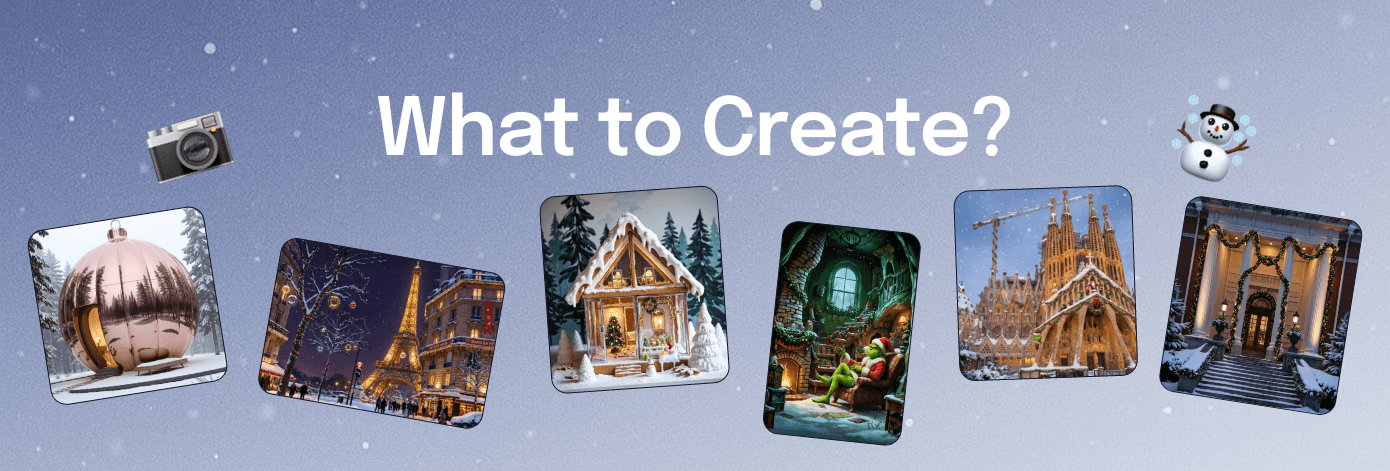
Anything Christmas themed that relates to architecture, space or environment:
A warm family house in the snow
A high end museum or gallery decorated for Christmas
A mountain cabin, ski resort or chalet
A skyscraper skyline with festive lights
An interior scene prepared for Christmas dinner
A real location that you transform with Rendair AI (for example your own street or a famous building)
You can start from scratch, use existing renders, or work over a real photo.
Step 1 – Log In To Rendair AI
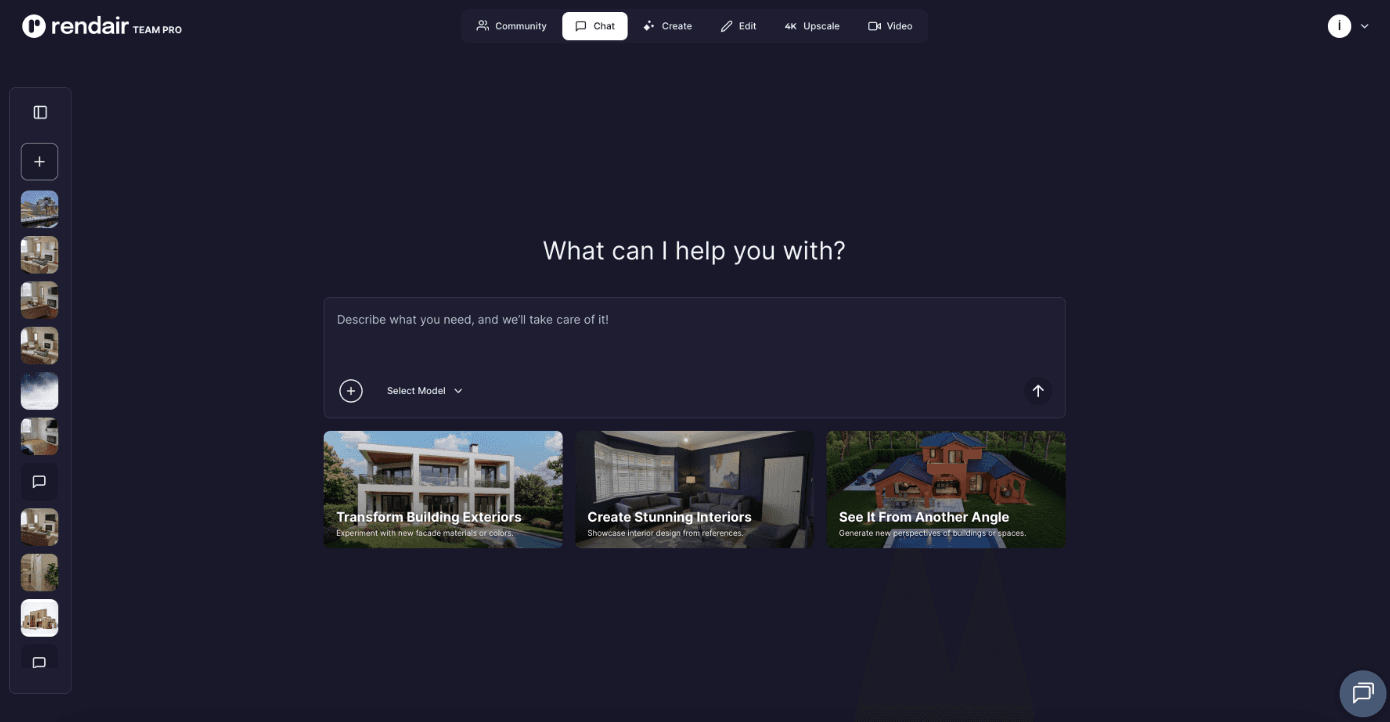
Go to rendair.ai and log in to your account.
If you are new to Rendair AI, you can start a trial and still join the competition.
Step 2 – Choose How You Want To Work
You can use any of these tools for your entry:
Chat – describe your idea and let the system build prompts or workflows
Create – generate images directly from text prompts
Edit – upload an existing image and add Christmas elements on top
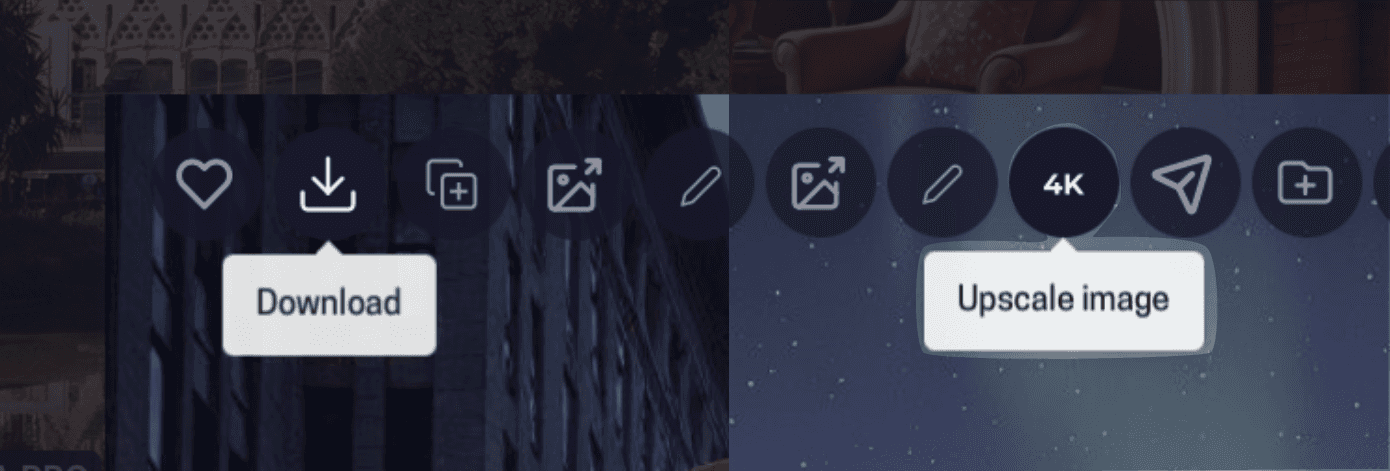
Upscale – sharpen and enlarge your final image for posting
Video – optional, if you want to present your design in motion
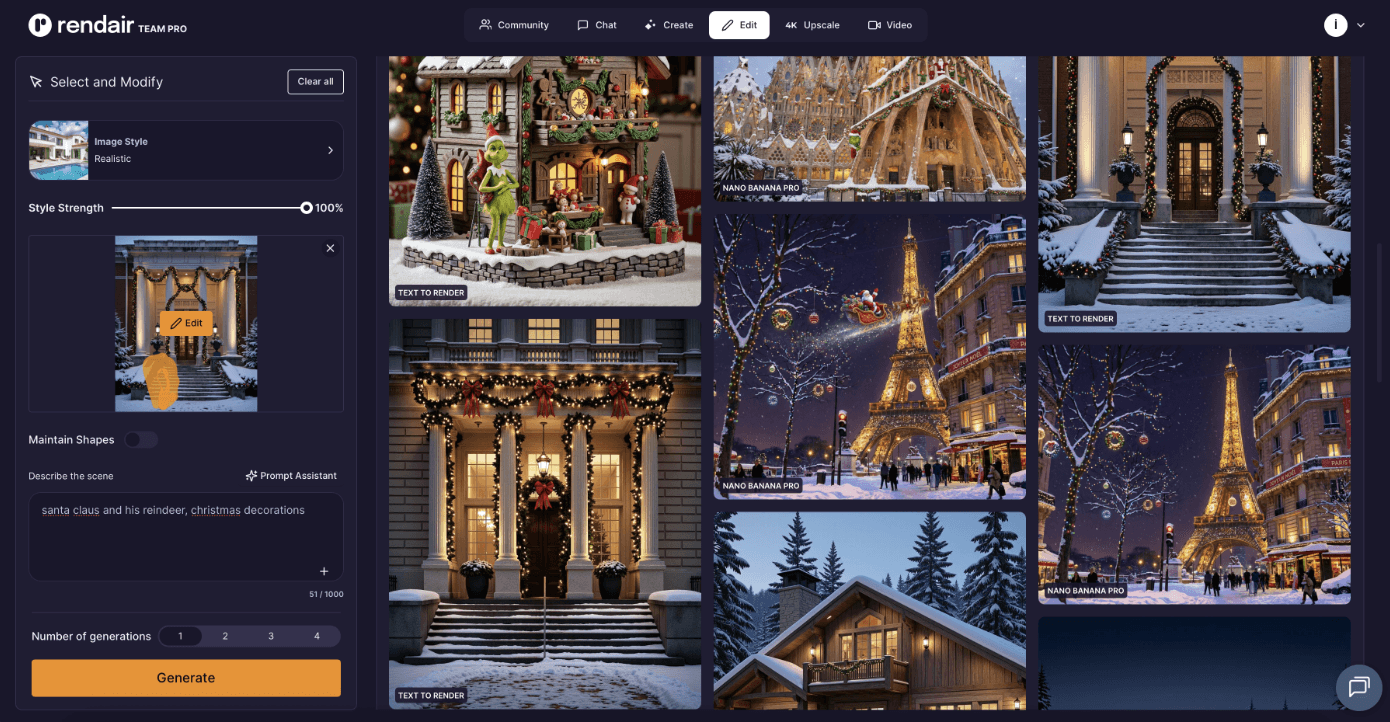
Most people will probably use Create or Edit for the main image.
Step 3 – Create Your Christmas Image
Here are a few prompt ideas you can share in the blog as inspiration:
Example prompt for a house exterior
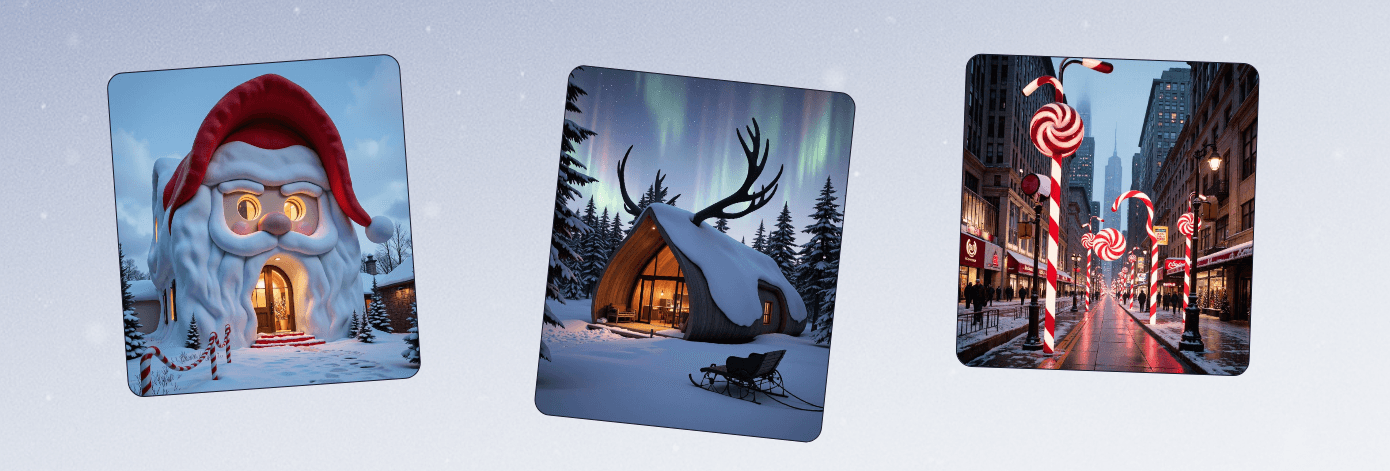
“House exterior shaped like Santa Claus silhouette, red curved roof forming the hat, white beard as flowing facade, round glowing windows as eyes, snowy North Pole landscape, magical lighting, grand entrance with candy cane pathway, surreal holiday architecture, ultra detailed render”
Example prompt for a city scene
“Entire city street transformed into peppermint-striped theme, lamp posts wrapped like candy canes, street lines colored red and white, giant lollipop sculptures, snow dust, cinematic bokeh holiday lighting”
Example prompt for house
“Reindeer antler-shaped modern cabin, wooden facade inspired by antler geometry, warm amber interior light, snow-covered forest surroundings, sleigh parked outside, northern lights in sky, high-end fantasy architecture visualization”
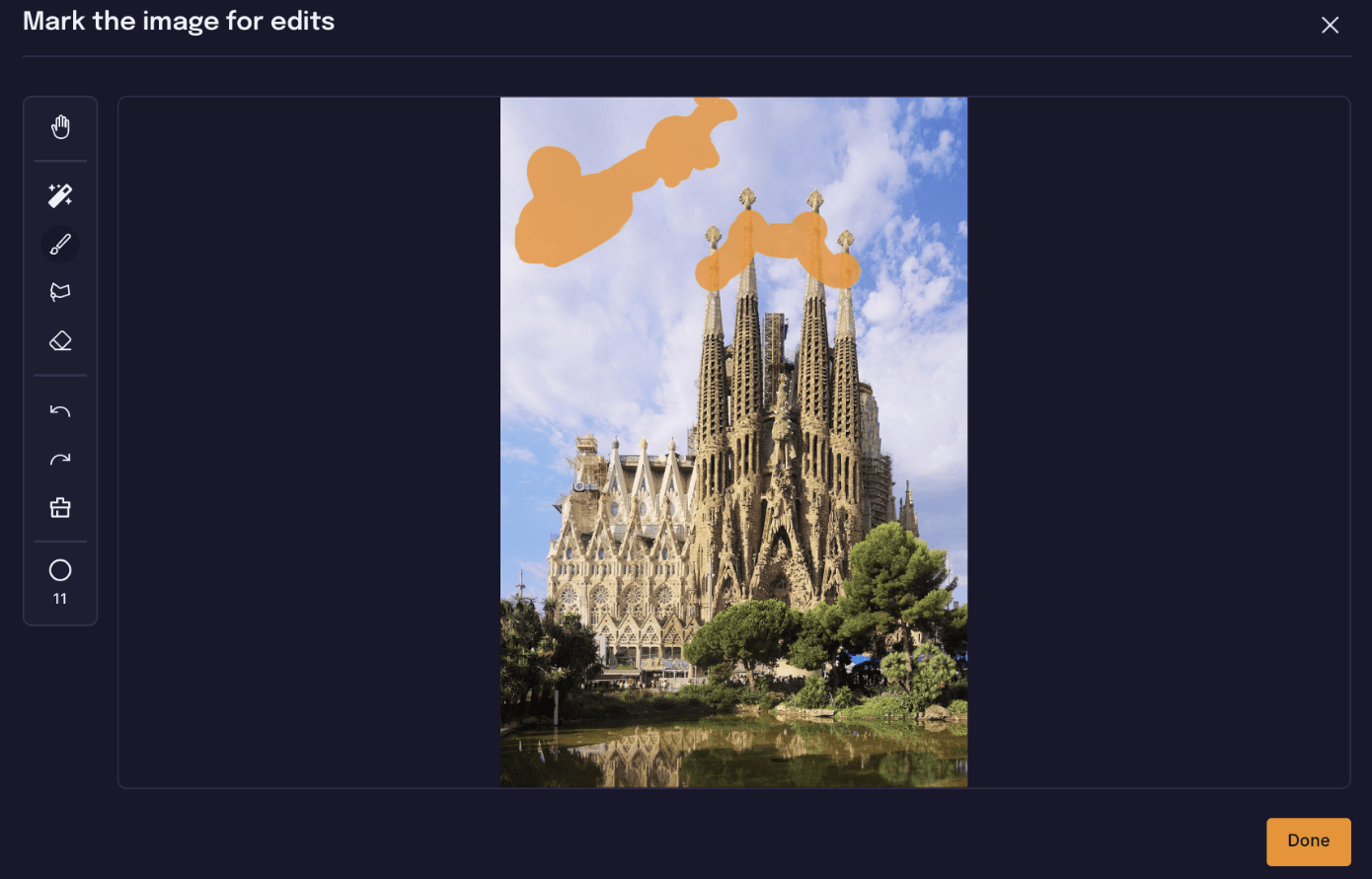
If you are using Edit, you can:
Upload your existing render or photo
Use the masking tools to select the area you want to modify
Ask Rendair AI to add Christmas lights, snow, trees, ornaments and so on
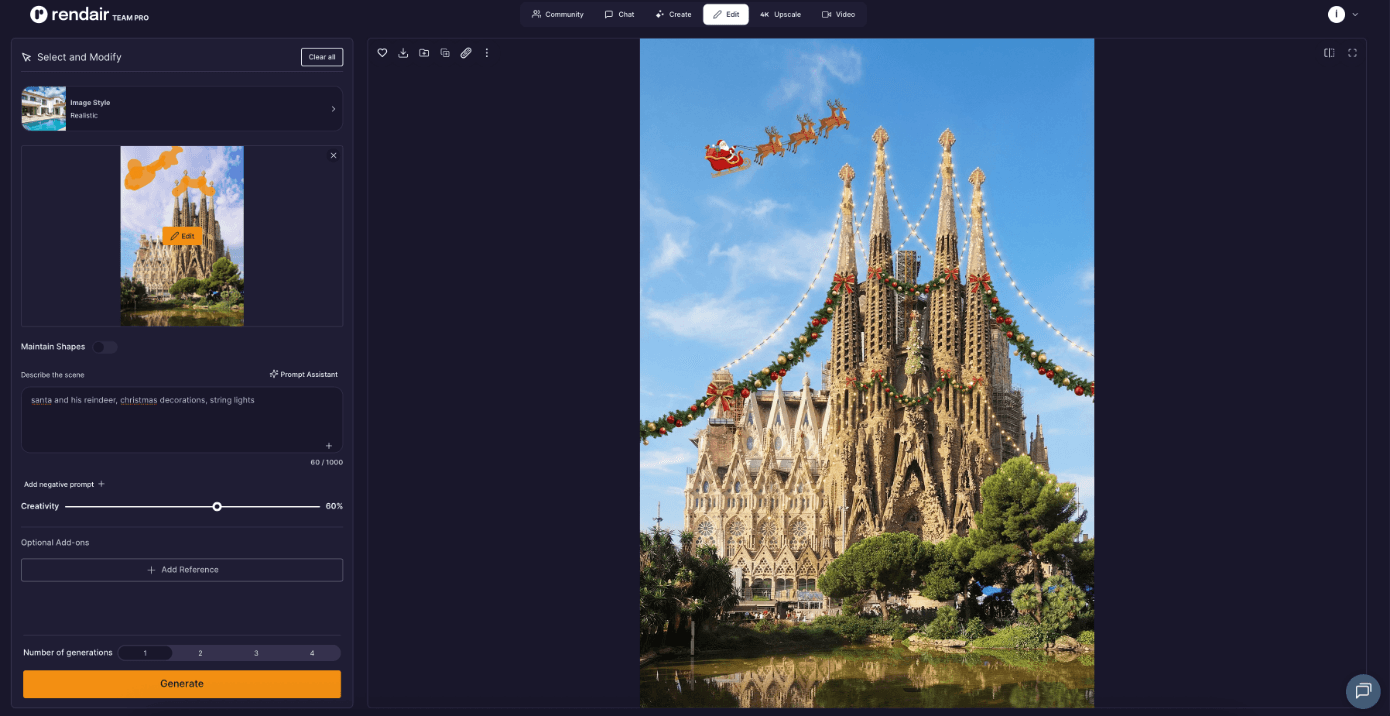
You can also run Upscale on your final result so it looks crisp on Instagram and LinkedIn.
Step 4 – Export Your Final Image
When you are happy with the result:
Download the image from Rendair AI
Save it in a format suitable for social media, usually JPG or PNG
Optional: crop to 4:5 or 1:1 for Instagram
Step 5 – Post On Instagram Or LinkedIn
Now it is time to share your work.
Open Instagram or LinkedIn
Start a new post
Upload your Christmas themed image from Rendair AI
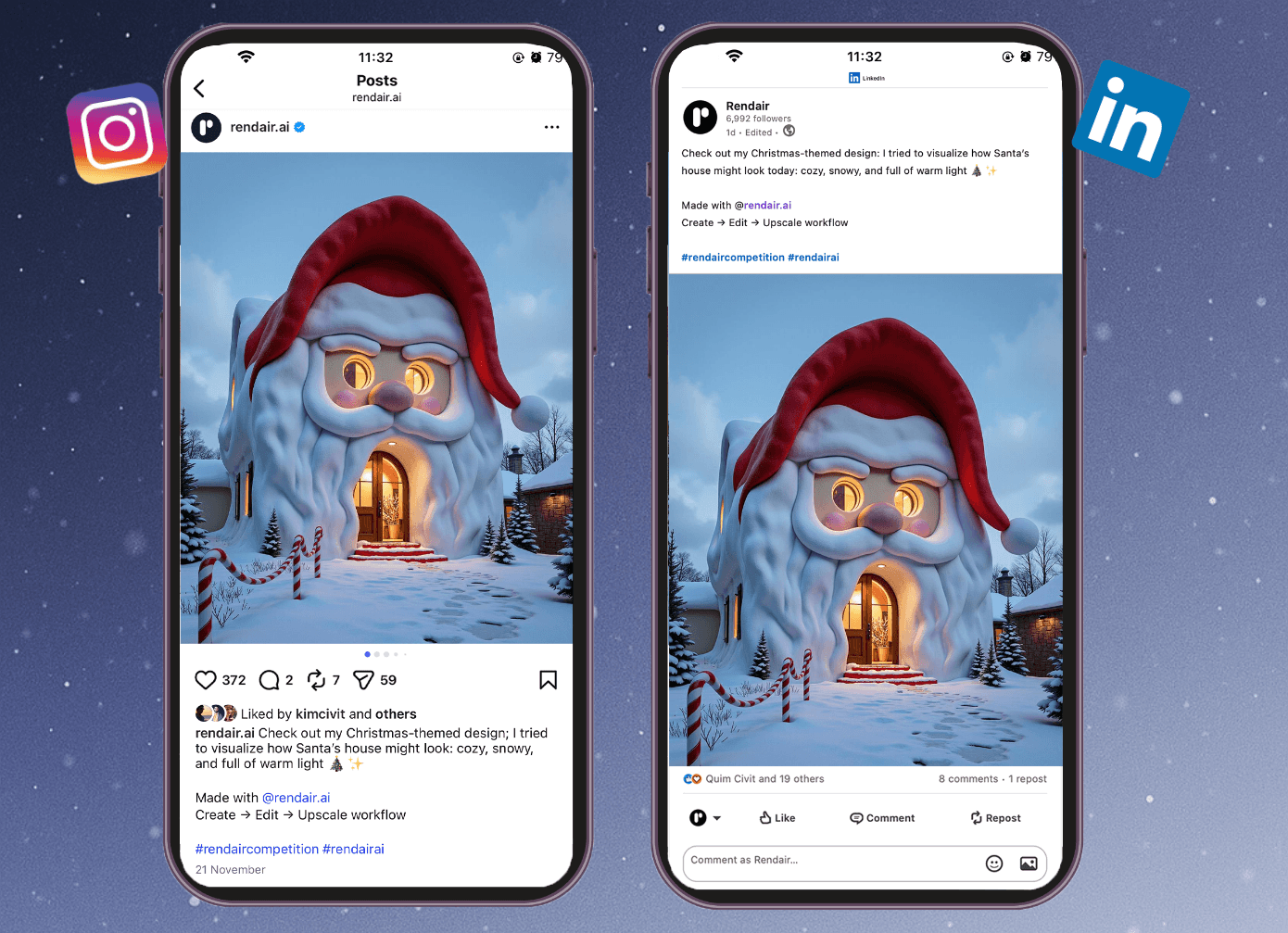
In your caption you can write about:
What the project represents
Which parts were created or edited with Rendair AI
What tools you used (Chat, Create, Edit, Upscale, Video)
Step 6 – Tag And Use The Hashtag
To make your entry valid for the competition, make sure you:
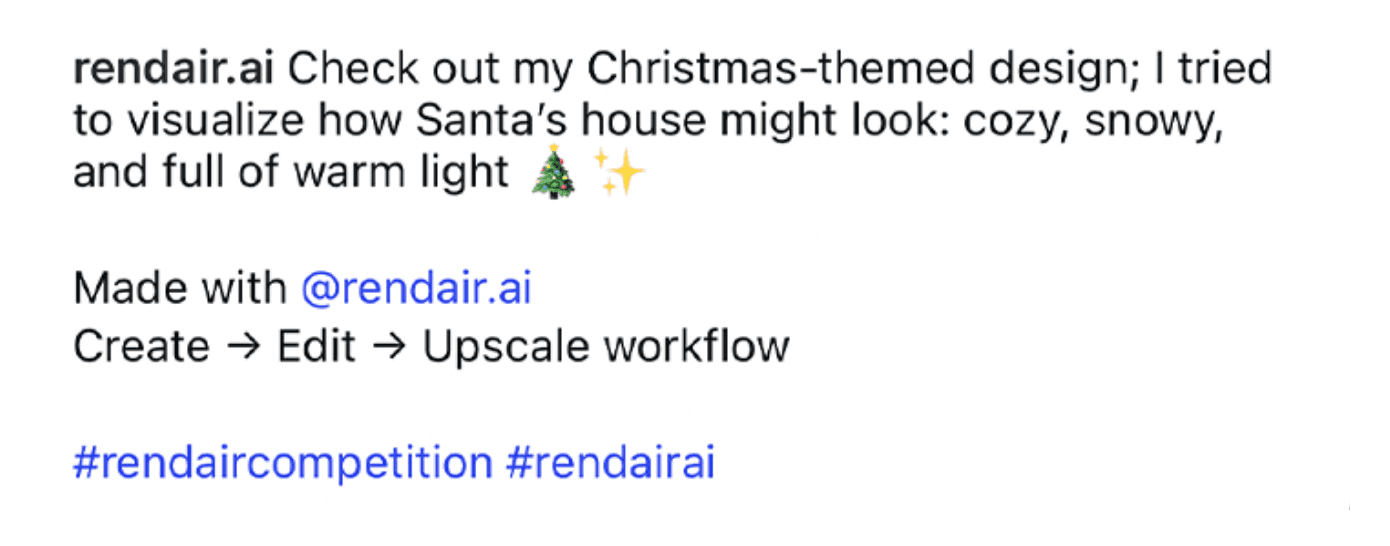
Tag @rendair.ai in the post
Add the hashtag #rendaircompetition in the caption
This is how we will find your work and include it in the selection.
You can submit more than one image if you want to explore different ideas. Each post that follows the rules will count as an entry.
Tips To Stand Out
A few ideas to make your design stronger:
Think like an architect: pay attention to composition, lighting and materials
Use real world references, maybe redesign your own neighborhood or a famous building
Tell a story in your caption, explain what you wanted to express
Explore more than one tool, combine Edit and Upscale, or generate a short video that flies through your scene
Join The Competition
That is it.
Create a Christmas themed design with Rendair AI
Share it on Instagram or LinkedIn
Tag @rendair.ai and use #rendaircompetition
Share(submit) before 23 December
We will review all entries and announce 3 winners on 24 December, each receiving an Annual PRO Plan.
Let your ideas snow. ✨🎄
Start Creating With Rendair AI