Can I swap which side shows original versus generated?
Last Updated: Feb 16, 2026
Answer
Short answer:
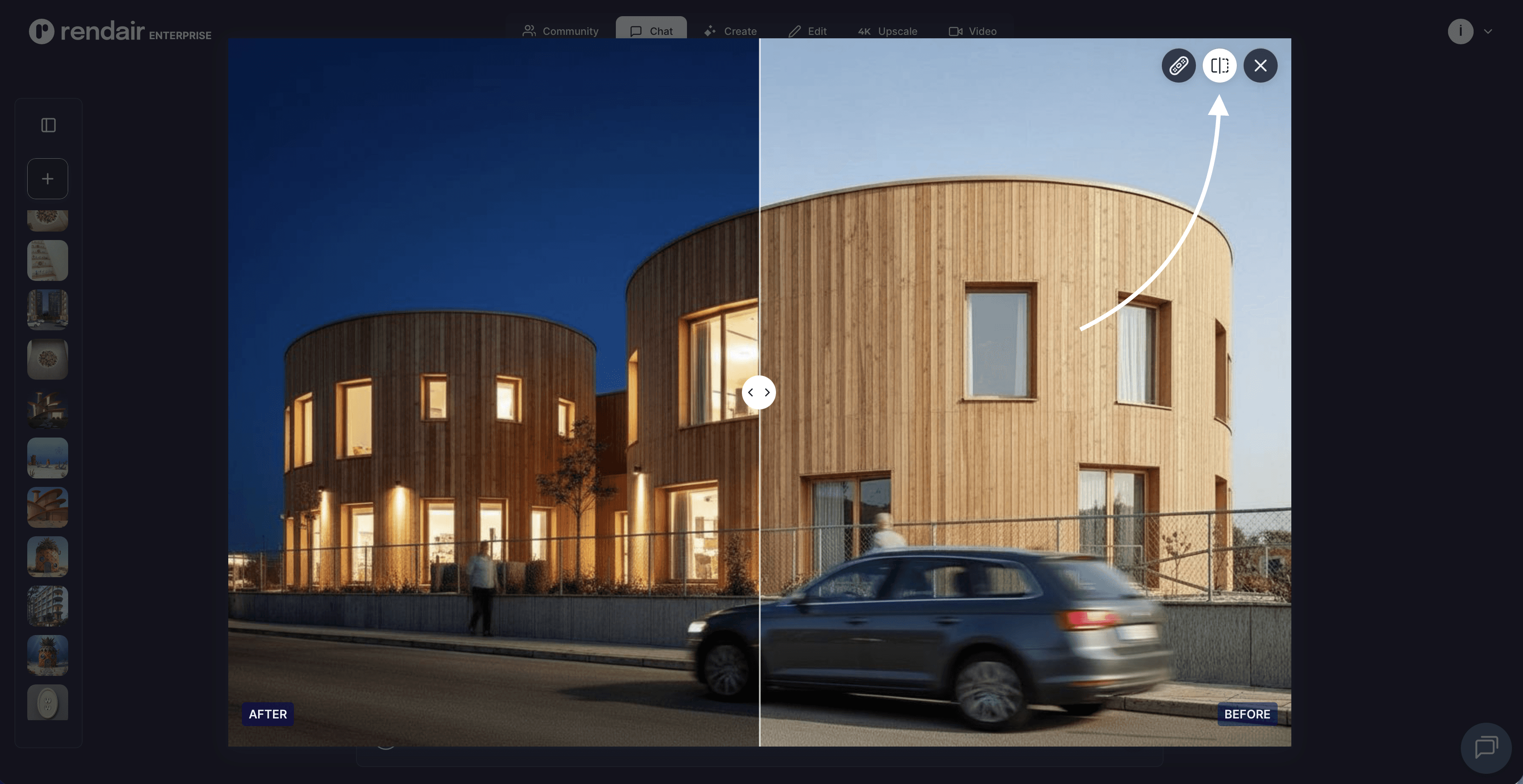
No, the comparison slider orientation is fixed in the Rendair AI interface to maintain visual consistency. The original (base) image always appears on the left, and the generated result always appears on the right.
Overview
The comparison slider is a core interface element designed to provide an immediate, predictable view of how your input has been transformed. By keeping the layout consistent, Input on the Left, Output on the Right, the platform ensures that architects and designers can rapidly scan through multiple iterations without confusion.
While you cannot swap the visual positions of the images in the slider view, the workflow allows you to easily promote a generated result to become the new "original" for further editing.
How it works
The comparison tool activates automatically whenever a generation task (such as Sketch-to-Render or Image-to-Image) is completed.
The Layout: Your uploaded file or base image sits on the bottom layer (Right). The new AI-generated render sits on the top layer (Left).
The Interaction: A vertical divider line appears in the center.
Drag Right: Reveals more of the generated outcome.
Drag Left: Reveals more of the original input.
The Result: This allows for a pixel-perfect check to ensure that structural elements (like walls, windows, or specific furniture placements) align correctly with your original intent.
Capabilities
While the slider itself is fixed, the platform supports several workflows that achieve similar goals of comparison and iteration:
Instant Structural Verification: Quickly check if the AI respected the lines of your original sketch or the geometry of your 3D base.
Iterative "Swapping": If you prefer the generated image and want to make it your new baseline, you can select "Edit" or "Use as Base." This effectively moves the generated image into the "Original" slot for the next round of prompting.
Independent Downloads: You can download the generated image separately from the original, allowing you to create your own side-by-side layouts in external presentation software if a different arrangement is required.
When to use this
Renovation Projects: To clearly show a client the "Before" (site photo) and "After" (proposed design) in a standard format.
Quality Control: To verify that the AI upscaling process enhanced details without altering the fundamental design.
Design Development: To confirm that material changes (e.g., swapping concrete for timber) were applied to the correct surfaces without "bleeding" into unwanted areas.
Limitations
Fixed Orientation: The Left-to-Right flow is hardcoded to match the standard reading direction of the timeline (Future/Output → Past/Input).
Visual Only: The slider is a viewing tool, not an export format. To share a comparison, you typically download both images or use a screen capture tool.
Do you have another question?
Search Our Knowledge Base…
Still Need Help?
Explore the platform's capabilities through a personalized demonstration or try it for free.
Contact support: support@rendair.ai
Documentation: Rendair Guides
Book A Demo: Book A Demo Session