From Concept to Client: What Rendair AI Can Do End to End
Last Updated: Feb 16, 2026
Answer
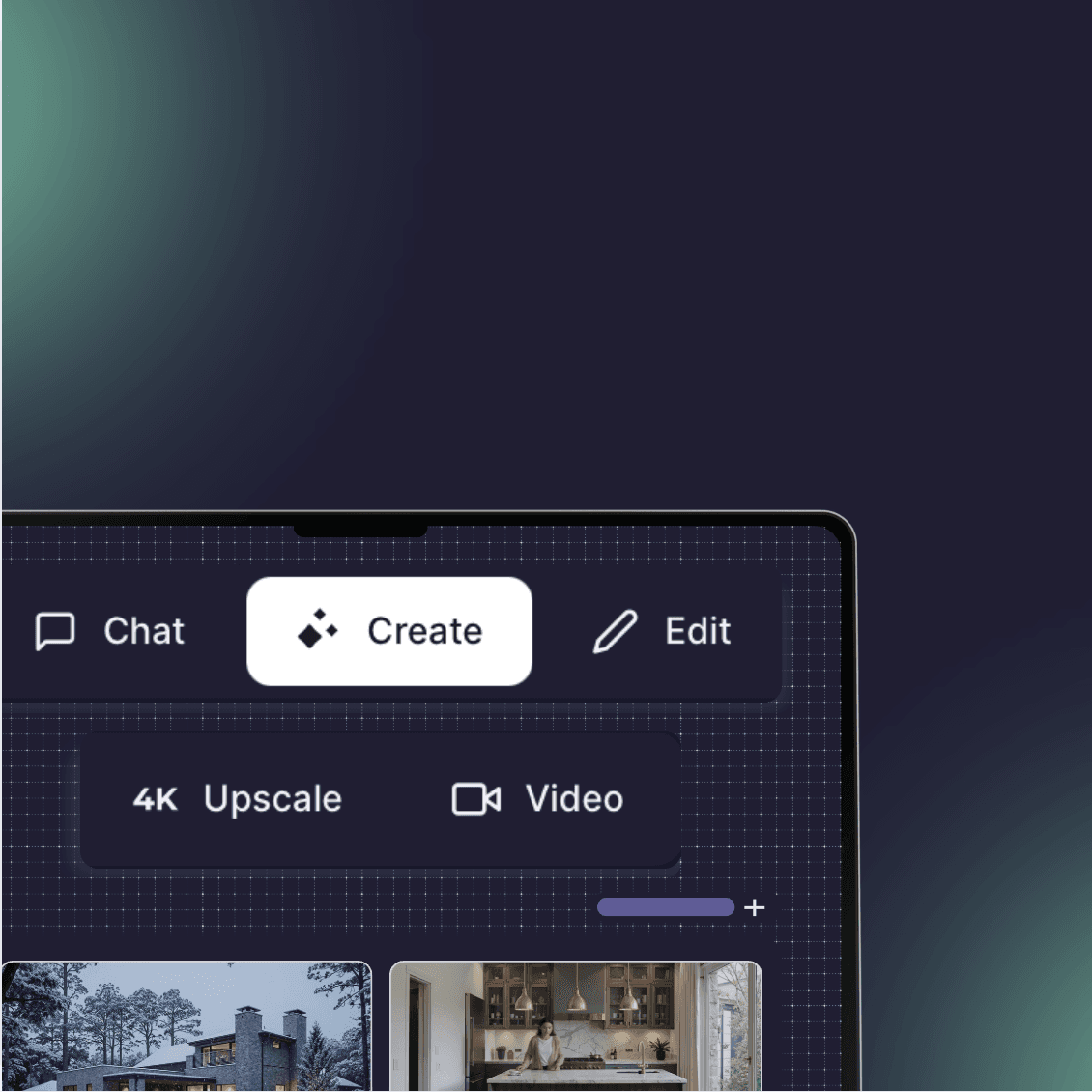
Rendair AI covers the full architectural visualization workflow, enabling you to generate initial concepts from text or sketches, refine designs with precise editing tools, and produce high-resolution renders or animations for final presentation. It functions as a single web-based workspace that consolidates generation, editing, and upscaling tasks.
Overview
In traditional workflows, visualization often requires a fragmented stack of software: modeling tools for geometry, rendering engines for lighting, and image editing software for post-production.
Rendair AI integrates these stages into one platform. It allows architects and designers to move from a rough idea, whether a text description, a napkin sketch, or a white card model, to a polished visual without switching tools. The platform is designed to support the iterative nature of design, where feedback loops are tight and speed is often as critical as fidelity.
1/ How the workflow operates
The platform is structured to handle inputs at various levels of fidelity. You do not need a finished 3D model to start, though you can use one if you have it.
Input: You provide a base. This can be a text prompt, a hand-drawn sketch, a screenshot of a 3D model (SketchUp, Revit, Rhino), or an existing photograph.
Generation: The AI interprets your input and prompt to generate visualization options. You control the balance between creativity and adherence to the original lines.
Refinement: Instead of re-rendering the whole image to fix one detail, you use editing tools to mask specific areas (like a window or a chair) and regenerate only that section.
Finalization: Once the design is approved, you upscale the image for print-ready resolution or generate a short video loop to show atmosphere and motion.
> “We know it is not final, but the client wants visuals.”
2/ Core capabilities
The platform provides a toolset that mirrors the phases of architectural production.
Generation from any source: Create realistic visuals from text descriptions, line drawings, elevations, or untextured 3D screenshots.
Precision editing: Use brush or lasso tools to select specific areas of an image to modify. You can add elements (e.g., "add a coffee table"), remove objects, or change materials without altering the rest of the scene.
Style transfer: Apply the visual style of a reference image to your design to maintain consistent mood boards or client branding.
High-fidelity upscaling: Increase image resolution up to 8K (depending on the plan) to create sharp, detailed visuals suitable for large-format presentations.
Motion generation: Convert static renders into short video animations to demonstrate lighting changes or atmospheric movement.
Commercial safety: All generated images are watermark-free (on active plans) and come with full commercial usage rights.
3/ Inputs and outputs
Rendair AI is designed to be file-agnostic, accepting standard formats used in design documentation.
Inputs
Images: JPG, PNG, WEBP, TIFF, HEIC, AVIF.
Documents: Single-page PDF (converting to JPG is recommended for best results).
3D Context: Screenshots of 3D models (textured or untextured) are the primary workflow. Some specific tools allow importing OBJ, FBX, or STL files for targeted insertion tasks.
Constraints: Maximum upload size is 16MB.
Outputs
Images: Default generations are approximately 1MP (or 2K for specific models like Nano Banana).
Upscaled Renders: Options for 2K, 4K, 6K, and 8K resolution.
Aspect Ratios: Text-to-render supports 1:1, 2:3, 4:5, and 16:9. Image-based workflows inherit the aspect ratio of the uploaded file.
Video: MP4 files for short animations.
4/ When to use this
Early concept design
Rapidly visualize massing options or material combinations before committing to a detailed BIM model.
Design development
Take a "white mode" screenshot from your 3D software and quickly test different cladding options or landscape strategies to show the team.
Client presentations
Upscale selected views to 4K or 8K for digital boards or print, ensuring lines are crisp and materials read clearly.
Marketing and social media
Turn a static hero shot into a subtle animation to increase engagement on Instagram or LinkedIn.
5/ Limitations and notes
While the platform automates much of the visualization process, understanding the boundaries ensures better results.
Generative interpretation: AI may occasionally hallucinate details or misinterpret complex spatial relationships. It is a visualization tool, not a construction documentation tool.
Resolution management: Base generations are lower resolution for speed. Always use the Upscale tool before presenting to clients to remove noise and sharpen details.
Human backup: for projects requiring 100% architectural accuracy that AI cannot yet guarantee, Rendair offers traditional human-made 3D rendering services. These are billed separately and include specific revision rounds.
Storage: There is no storage cap for active subscribers. You can keep your project history accessible as long as your subscription is active.
Do you have another question?
Search Our Knowledge Base…
Still Need Help?
Explore the platform's capabilities through a personalized demonstration or try it for free.
Contact support: support@rendair.ai
Documentation: Rendair Guides
Book A Demo: Book A Demo Session